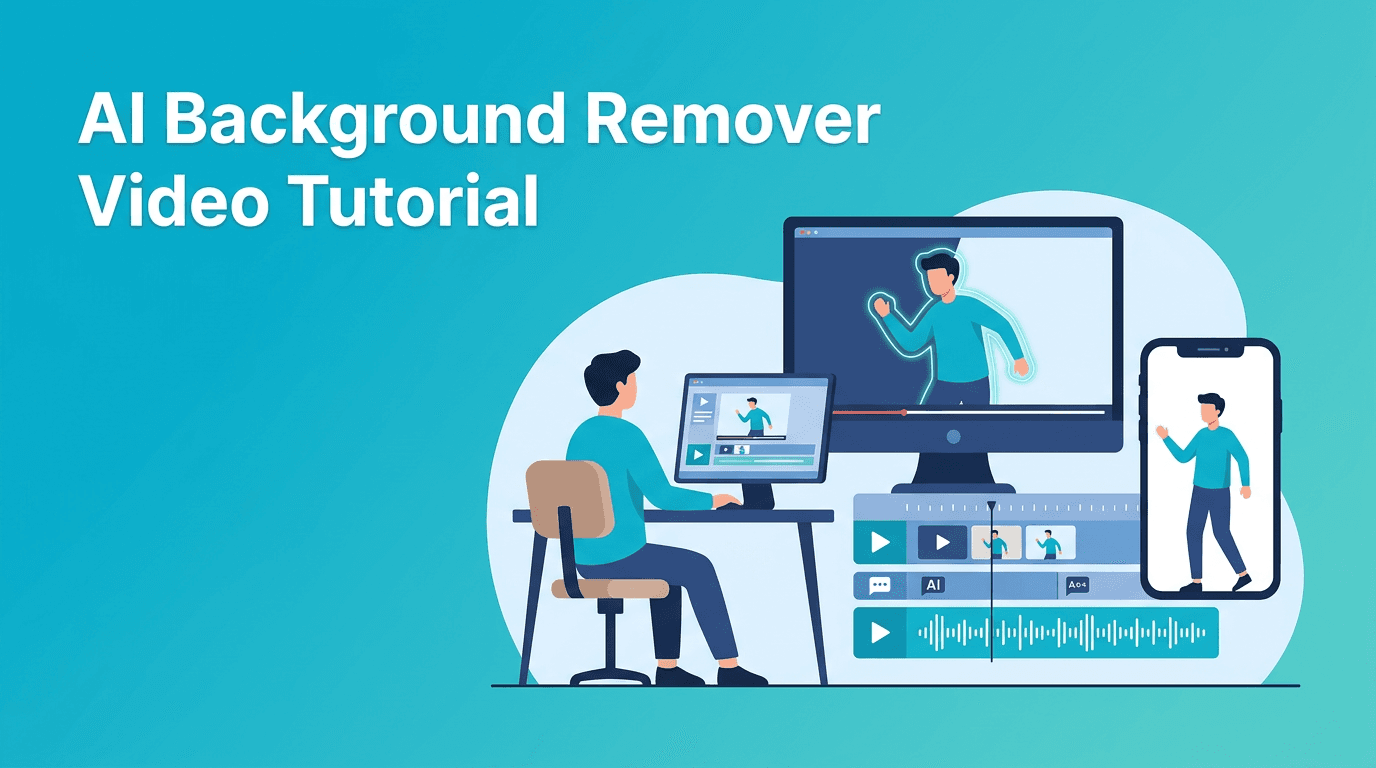
AI Background Remover Video Tutorial for Faster Editing Workflows
Learn an actionable ai background remover video workflow that speeds up edits, reduces manual masking, and helps creators compare AI editing vs manual editing for cleaner, faster results.

By Movi AI Team
Movi AI Editorial Team
If you want a faster way to clean up clips, ai background remover video tools can cut hours from your edit. In this tutorial, you will learn a practical AI-powered workflow for background removal, captions, upscaling, audio cleanup, object removal, and repetitive task automation, plus how AI editing compares with manual editing.
Why creators are switching to AI-powered editing
Traditional editing is powerful, but it often involves frame-by-frame masking, repeated keyframing, manual caption typing, and time-consuming cleanup. With ai video editing, creators can automate the slowest parts of post-production and spend more time on storytelling, pacing, and publishing.
- Use AI to remove backgrounds without detailed manual rotoscoping
- Apply ai video enhancement to sharpen soft footage and improve clarity
- Run ai video upscale when older clips need higher-resolution output
- Generate auto caption video text for shorts, tutorials, and YouTube videos
- Clean spoken audio with AI tools that reduce hiss, echo, and uneven volume
- Automate repetitive editing tasks like reframing, trimming, and scene detection
"The best AI editing workflow does not replace creative judgment, it removes the repetitive work that slows creators down."
Before and after: manual editing vs AI editing
What manual editing looks like
Before AI, a creator might isolate a subject by drawing masks, correcting edges, syncing captions by hand, and cleaning audio with multiple plugins. That process can take 30 to 90 minutes for a short clip, especially when hair, motion blur, or low light complicate the edit.
What AI editing looks like
After switching to an ai video editor, the same creator can import footage, let AI detect the subject, remove or replace the background, generate captions, improve speech clarity, and prep a cleaner export in a fraction of the time. You still review the result, but the heavy lifting starts automatically.
Step-by-step AI editing workflow for faster results
1. Start with the cleanest source clip you have
Even the best ai video editor performs better with decent input. Use clips with clear subject separation, stable lighting, and readable speech. If you are filming for background removal, avoid clothing that blends into the backdrop and keep motion blur low.
2. Remove the background first
Your ai background remover video step should happen early because it affects everything that follows. Once the subject is separated, you can replace the background, add graphics, or reframe vertically for social content. In *Movi AI*, creators can quickly test different visual directions from existing footage and generated assets.
- Import the clip and choose the background removal tool
- Check edge quality around hair, hands, and fast movement
- Replace the background with a clean color, image, or generated scene
- Review difficult frames and fix only the shots that need attention
3. Clean distractions with AI object removal
After background removal, scan the frame for unwanted items such as cables, logos, light stands, or random passersby. AI object removal helps preserve focus on the subject without rebuilding the shot manually. This is especially useful for product demos, talking-head videos, and tutorial content.
4. Improve clarity with AI video enhancement
Next, use ai video enhancement to recover detail, reduce visible softness, and make footage look more polished. This can help when clips were recorded in a rush, exported too many times, or captured on older devices. Enhancement is not magic, but it often creates a noticeably stronger final result.
5. Use AI video upscale only when needed
Many creators apply ai video upscale too early. A better approach is to finish the core edit first, then upscale if your delivery format demands it. If a clip started in low resolution but needs to fit a larger canvas, upscale selectively instead of processing every shot in the timeline.
- Upscale archive clips that must match newer footage
- Avoid unnecessary upscaling for already sharp source video
- Compare exports side by side before committing to the final render
- Use short test segments to check texture, edges, and motion artifacts
6. Generate captions automatically
For tutorials, interviews, reels, and shorts, auto caption video tools are a major time saver. Let AI create the first pass, then spend a few minutes correcting names, technical terms, and punctuation. This is much faster than typing captions from scratch and usually improves accessibility and watch time.
7. Enhance audio before final export
Strong visuals will not save weak sound. Use AI audio enhancement to reduce background noise, level speech, and improve intelligibility. If your video includes voiceover, this step can make the content feel far more professional without a full manual audio mix.
8. Automate repetitive editing tasks
One of the biggest wins in ai video editing is automation. Instead of repeating the same actions across multiple clips, let AI handle tasks like silence trimming, scene detection, rough cut generation, smart reframing, and batch captioning. This is where creators often see the biggest time savings each week.
AI workflow vs manual workflow: where each one wins
- AI wins on speed for masking, captions, cleanup, and repetitive tasks
- Manual editing wins on precision when shots are complex or highly stylized
- AI wins on scalability when you need many versions for Shorts, Reels, and TikTok
- Manual editing wins on custom polish for hero videos, ads, and cinematic sequences
- Best results usually come from a hybrid workflow where AI handles the first pass and the editor refines the final output
If you are searching for how to edit video with ai, the smartest answer is not to automate everything. Use AI for the predictable, repetitive, and technical steps, then apply your own taste to timing, story structure, transitions, and final quality control.
Try a faster AI video workflow
Want to create polished videos without spending hours on repetitive edits? *Movi AI* helps creators generate and transform video from text, images, and existing footage with AI-powered tools.
Download Movi AIHow Movi AI fits into a modern editing process
If you want the best ai video editor app for speed and experimentation, *Movi AI* is a strong fit for creators who need fast content production. You can start with a prompt, image, or existing video, then build variations, test concepts, and create social-ready edits without getting stuck in a slow traditional workflow.
- Turn ideas into clips with text-to-video
- Animate references with image-to-video
- Transform existing footage with video-to-video tools
- Build around spoken content using speech-to-video workflows
- Create more versions faster for social platforms and campaigns
Final takeaway
The most effective AI workflow is practical, not flashy. Start with ai background remover video tasks, add captions automatically, enhance audio, remove distractions, and upscale only when needed. That combination saves time, improves consistency, and lets you focus on the creative decisions that actually grow a channel.
Frequently Asked Questions
How do I remove background from a video with AI?
Upload your clip to an AI editing tool, run background detection, review the subject edges, and replace or remove the background. Always check hair, motion blur, and fast hand movement before export.
What is the best AI video editor app for creators?
The best app depends on your workflow, but creators often look for tools that combine generation, enhancement, captioning, and fast editing. *Movi AI* is useful for making and transforming videos quickly from prompts, images, and existing footage.
Can AI add captions to video automatically?
Yes. Auto-caption tools can transcribe speech, place timed subtitles, and give you a fast first draft. You should still review spelling, names, and punctuation for accuracy.
Does AI video upscale really improve quality?
AI upscaling can improve perceived sharpness and help low-resolution footage fit larger formats, but it cannot fully recreate missing detail. Test short clips first to make sure the result looks natural.
Is AI video editing better than manual editing?
AI is usually better for speed and repetitive tasks, while manual editing is better for precise creative control. Most creators get the best results by combining both approaches.
Movi AICreate stunning AI videos in seconds!
Turn your ideas into professional videos with the #1 AI video maker.
Download Movi AI