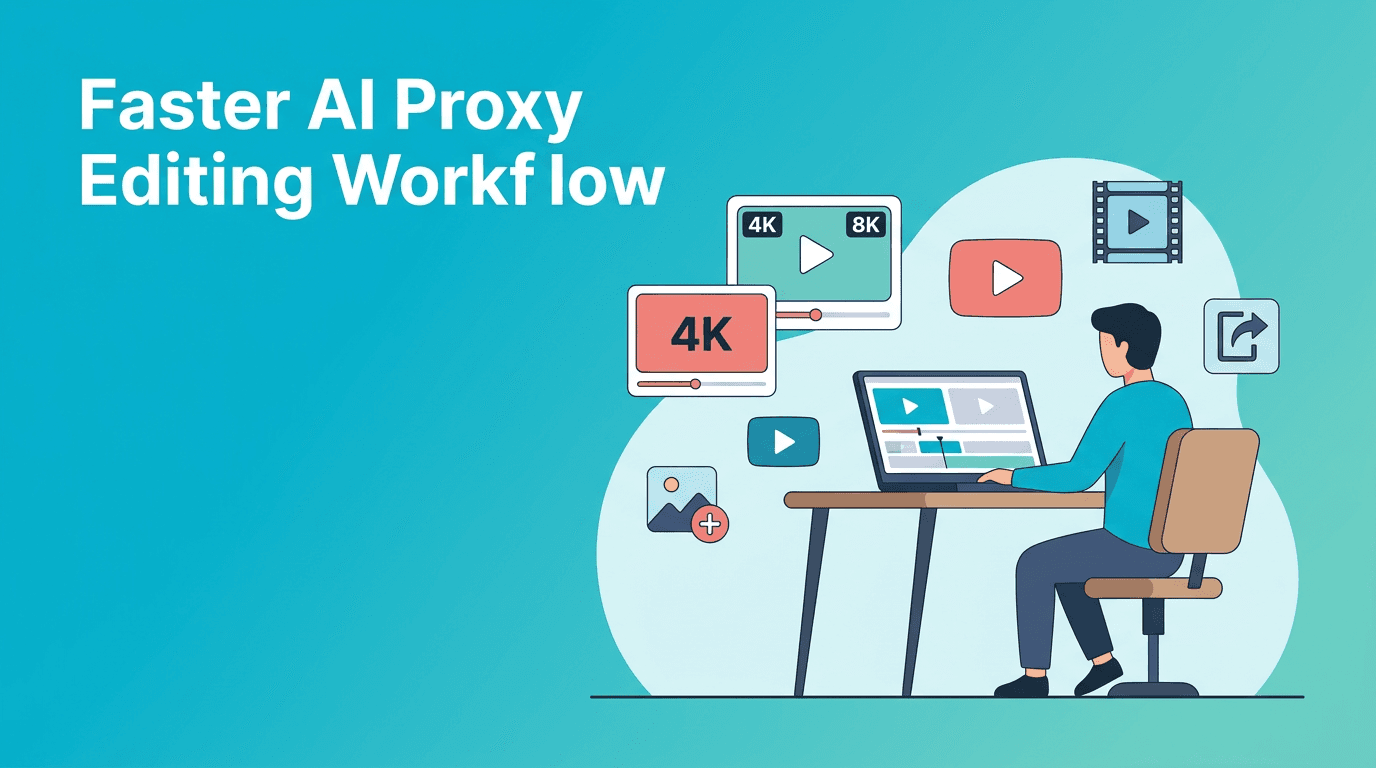
AI Proxy Editing Workflow for Faster 4K and 8K Video Projects
Learn an AI proxy editing workflow to cut 4K and 8K footage faster, reduce lag, and finish edits with less frustration using practical creator-friendly steps.

By Movi AI Team
Movi AI Editorial Team
AI proxy editing is one of the simplest ways to speed up heavy video projects when your timeline keeps stuttering. If you edit 4K or 8K footage, this workflow helps you create lighter files for smoother cuts, faster reviews, and less wasted time.
Why AI proxy editing matters for creators
Manual high-resolution editing can slow down even good machines. With AI proxy editing, you work with lightweight versions of your clips while keeping the original files ready for final export. The result is a faster timeline, quicker scrubbing, and fewer playback interruptions.
- Before: choppy playback, delayed cuts, constant render waiting, and slower revision rounds.
- After: smoother previews, faster trimming, easier multicam handling, and more focus on storytelling.
- Best for: YouTubers, social editors, documentary creators, and anyone cutting large files on a laptop or older desktop.
Step 1: Identify footage that needs proxies
Start by flagging the clips that create the most lag. Usually this includes 4K, 6K, 8K, high frame rate footage, screen recordings with dense detail, and long-form multicam clips. You do not need proxies for every asset, only the media that actually slows your edit.
What to check first
- Resolution above 1080p
- Frame rates like 60fps, 120fps, or higher
- Footage shot in log or raw formats
- Long interviews or podcast recordings
- Multiple camera angles playing at once
Step 2: Create a smart proxy folder structure
Keep your project clean by placing original footage, proxy files, graphics, and exports in separate folders. A simple structure prevents relinking problems later. Name proxy files clearly so your editor can swap between proxy and original media without confusion.
Step 3: Let AI assist clip organization
This is where AI can help beyond basic proxies. Tools like *Movi AI* can speed up project prep by helping creators generate supporting visuals from text, images, or existing footage while you organize the edit. That means less time hunting for filler shots and more time refining the actual sequence.
"The fastest edit is not the one with the most shortcuts. It is the one with the fewest unnecessary steps."
Step 4: Edit with proxies first, polish later
Do your rough cut, structure changes, pacing, and story decisions while proxies are enabled. Save color-sensitive and detail-sensitive tasks for the end. This keeps your system responsive during the most creative part of the process.
- Trim dialogue and remove dead space first.
- Build the main story arc before adding effects.
- Add music and rough sound levels early.
- Leave fine detail checks for the original media pass.
Step 5: Switch back to originals for final review
Once the cut is locked, reconnect to full-quality media. Review focus, graphics sharpness, motion details, and any text overlays. This is when you confirm export settings and catch quality issues that proxies might hide.
AI proxy editing vs manual full-resolution editing
- AI proxy editing workflow: faster playback, quicker decisions, lower system strain, better for long projects.
- Manual full-resolution editing: more precise from the start, but slower on underpowered machines.
- Best choice: use proxies for speed, then return to originals for finishing and export.
Create supporting visuals while you edit
Use *Movi AI* to generate extra shots, visual ideas, and creative assets from text, images, or video while your main edit comes together.
Download Movi AICommon mistakes to avoid
- Forgetting to relink original files before export
- Mixing proxy files into the original footage folder
- Applying final sharpness decisions while still viewing proxies
- Creating proxies for every file instead of only heavy clips
- Using inconsistent naming that breaks relinking later
Final takeaway
If your computer struggles with modern footage, AI proxy editing is a practical workflow upgrade. It helps you edit sooner, review faster, and spend more time making creative decisions instead of fighting playback lag. Pair that with *Movi AI* for fast AI-generated visuals, and your production pipeline gets even more efficient.
Frequently Asked Questions
What is AI proxy editing?
AI proxy editing is a workflow that uses lightweight copies of high-resolution clips so you can edit faster without stressing your computer.
Does proxy editing reduce final export quality?
No. Proxies are only for editing performance. Final exports should use the original full-quality media.
Who should use an AI proxy editing workflow?
Creators editing 4K, 6K, 8K, multicam, or long-form projects will benefit the most from proxy workflows.
Can I use Movi AI with my editing workflow?
Yes. Movi AI can help you create AI-generated video assets from text, images, or video, which can support your main editing process.
Movi AICreate stunning AI videos in seconds!
Turn your ideas into professional videos with the #1 AI video maker.
Download Movi AI