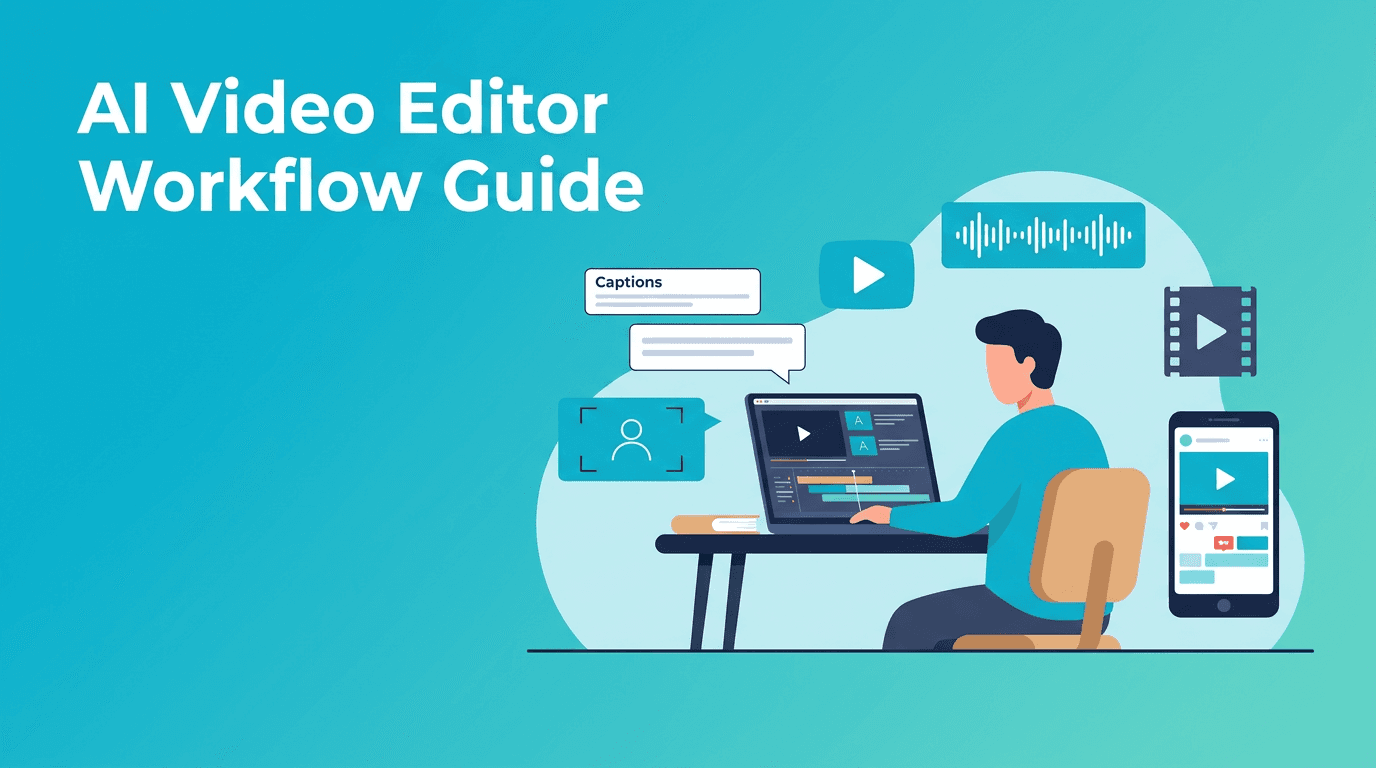
AI Video Editor Workflow: Practical Tutorials for Faster, Smarter Edits
Learn an AI video editor workflow for color grading, background removal, upscaling, captions, object removal, audio cleanup, and task automation, with practical steps and a clear comparison to manual editing.

By Movi AI Team
Movi AI Editorial Team
If your timeline keeps filling up with repetitive fixes, an ai video editor can cut hours from your process. In this guide, you will learn practical tutorials for color grading, background removal, video upscaling, auto captions, object removal, audio enhancement, and workflow automation, plus when AI beats manual editing and when it does not.
Why an AI video editor changes the editing process
Traditional editing is powerful, but many tasks are slow because they depend on frame-by-frame adjustments, manual keyframing, repeated masking, and constant exporting. An ai video editor helps by detecting patterns, tracking subjects, cleaning audio, generating captions, and applying smart enhancements in seconds. The result is not just speed, but a more consistent edit across multiple videos.
"AI works best when it removes repetitive work, so creators can spend more time on story, pacing, and creative choices."
Set up your AI video editing workflow before you start
1. Organize footage for better AI results
- Create folders for A-roll, B-roll, music, voiceover, and exports.
- Rename clips by scene or topic so the AI suggestions are easier to review.
- Trim obvious mistakes before running enhancements. Shorter, cleaner source clips usually produce better AI output.
- Keep your highest-quality source files available. This matters for ai video enhancement and ai video upscale tasks.
2. Decide what AI should handle first
A smart order saves time. Start with cleanup tasks that affect the whole edit, then move to finishing tasks. A simple sequence is: audio cleanup, rough cut, background removal, object cleanup, color grading, captions, then upscaling at the end. This avoids reprocessing clips after major changes.
Tutorial: Use AI for color grading faster
Before: your clips may look inconsistent because lighting changes from shot to shot. After: your footage looks balanced, clean, and closer to a consistent brand style. This is one of the easiest wins in ai video editing.
- Import your clips and choose one well-exposed shot as the visual reference.
- Run the AI color correction tool to normalize exposure, white balance, and contrast across similar clips.
- Review skin tones first. If faces look unnatural, reduce the strength instead of applying more filters.
- Apply a creative look only after the base correction is fixed.
- Save the result as a reusable preset for future videos in the same setup.
With *Movi AI*, creators can speed up style matching by starting from text prompts, images, or existing videos, then refining the visual output instead of manually building every look from scratch.
When AI color grading works best
- Talking-head videos with similar lighting setups
- Product videos that need a clean, consistent look
- Social clips where speed matters more than cinema-level manual grading
Tutorial: Remove backgrounds without frame-by-frame masking
If you have ever roto-brushed a subject manually, you know how much time it takes. An ai background remover video workflow can isolate people or objects automatically, especially for short-form content, explainers, and product demos.
- Choose a clip with clear subject separation if possible.
- Run the background removal tool and let the AI detect the subject edges.
- Inspect hair, hands, and fast movement areas first. These usually need minor correction.
- Replace the background with a solid scene, branded graphic, or generated visual.
- Add a soft shadow or blur so the cutout feels more natural.
Manual masking still wins for highly complex scenes, but AI is ideal when you need clean results quickly for YouTube intros, reels, tutorials, or ad creatives.
Tutorial: Improve softness with AI video upscale
Older footage, compressed screen recordings, and cropped clips often look soft. AI video upscale tools can sharpen perceived detail, reduce compression artifacts, and improve delivery quality when used carefully.
- Finish your edit before upscaling. Do not upscale raw clips unless you truly need to.
- Choose the output resolution based on platform needs, such as 1080p or 4K.
- Use moderate enhancement settings first. Too much sharpening creates halos and fake detail.
- Check text, faces, and edges at 100 percent zoom before exporting.
- Export a short test clip before processing the full timeline.
This is where ai video enhancement can save weak footage, but it cannot fully replace good lighting and a clean source. Think of it as recovery, not magic.
Tutorial: Auto caption video for faster publishing
Captions boost retention, accessibility, and watch time, especially on mobile. An auto caption video workflow is one of the fastest ways to reduce repetitive editing.
- Generate captions automatically from your dialogue track.
- Review names, brand terms, and technical words manually. AI transcription is fast, but not perfect.
- Split long caption lines for easier reading on phones.
- Style captions with high contrast and consistent placement.
- Burn captions in for social clips, or export subtitle files for platform flexibility.
Before: manually typing and syncing every line. After: a complete first draft in minutes, with only a quick accuracy pass needed.
Tutorial: Remove unwanted objects and distractions
A stray microphone, wall mark, passerby, or logo can ruin an otherwise strong shot. AI object removal tools analyze surrounding pixels and fill the area automatically, which is much faster than manual paint work for simple scenes.
- Pause on the frames where the distraction appears most clearly.
- Mask only the object you want removed, not the whole area around it.
- Track the mask if the camera or subject moves.
- Preview the fill over motion, not just on a still frame.
- If the background has detailed patterns, combine AI fill with a manual cleanup pass.
Tutorial: Enhance audio before polishing visuals
Bad audio makes viewers leave faster than average visuals do. Use AI to remove hiss, reduce room echo, balance levels, and isolate speech before you spend time on final graphics or transitions.
- Run noise reduction on voice tracks first.
- Use speech enhancement to improve clarity and presence.
- Level dialogue before adding music.
- Duck background music automatically during speech sections.
- Listen with headphones and speakers to catch artifacts the AI may introduce.
For many creators, AI audio cleanup delivers the biggest perceived quality jump in the least amount of time.
Tutorial: Automate repetitive editing tasks
The real advantage of an ai video editor is not one feature. It is stacking small time savings across the whole workflow.
- Use scene detection to split long recordings into manageable segments.
- Generate rough cuts from speech or transcripts.
- Create reusable templates for captions, lower thirds, and outros.
- Batch-apply color correction or audio cleanup to matching clips.
- Repurpose one long video into multiple shorts with AI-assisted reframing and trimming.
Want a faster way to create and edit with AI?
Try *Movi AI* to generate videos from text, images, or existing footage, then turn ideas into polished content faster with AI-powered creation tools.
Download Movi AIAI editing workflow vs manual editing
Where AI wins
- Speed - captions, cleanup, and first-pass corrections happen much faster.
- Consistency - similar clips can receive matched treatment across an entire project.
- Scalability - creators publishing daily content can process more videos with less effort.
- Accessibility - solo creators can achieve results that once required a full post-production team.
Where manual editing still matters
- Complex storytelling decisions, pacing, and emotional timing
- Detailed masking in chaotic scenes
- High-end color work for cinematic projects
- Final quality control when AI makes small but visible mistakes
Best practice is a hybrid approach. Let AI handle the repetitive first pass, then make creative and quality decisions manually. That is usually the fastest path to professional-looking output.
How to choose the best AI video editor app for your workflow
- Pick tools that solve your main bottleneck first, such as captions, cleanup, or repurposing.
- Check whether the app supports text-to-video, image-to-video, and editing from existing clips.
- Look for mobile flexibility if you publish often from your phone.
- Test export quality, speed, and ease of revisions before committing to one workflow.
- Choose a tool that helps both creation and editing, not just one isolated feature.
If you want the best ai video editor app for fast content production, focus on how quickly you can go from idea to publishable video, not just how many features appear in a menu.
Final takeaway
An effective ai video editor workflow helps you spend less time on technical repetition and more time on creative decisions. Start with audio cleanup, use AI for color matching and captions, remove distractions, upscale only at the end, and compare every result against the original. The goal is not to replace editing skills, but to make those skills work faster.
Frequently Asked Questions
How do I edit video with AI as a beginner?
Start with simple tasks like auto captions, audio cleanup, and basic color correction. Then add background removal or upscaling once you are comfortable reviewing AI results.
What is the best AI video editor app for creators?
The best app depends on your workflow, but look for fast creation, easy editing, high export quality, and tools like captions, enhancement, and clip repurposing. Movi AI is a strong option for creators who want to generate and polish videos quickly.
Can AI improve video quality on old footage?
Yes, AI can help with sharpening, denoising, and upscaling, especially on compressed or low-resolution clips. Results are best when the source footage is still reasonably clear.
Is auto caption video accurate enough for publishing?
Usually yes for a first draft, but you should always review names, jargon, and punctuation. A quick manual pass ensures professional results.
Does AI background remover video work without a green screen?
Yes, many AI tools can isolate a subject without a green screen. Clean separation and good lighting usually improve the final result.
Movi AICreate stunning AI videos in seconds!
Turn your ideas into professional videos with the #1 AI video maker.
Download Movi AI