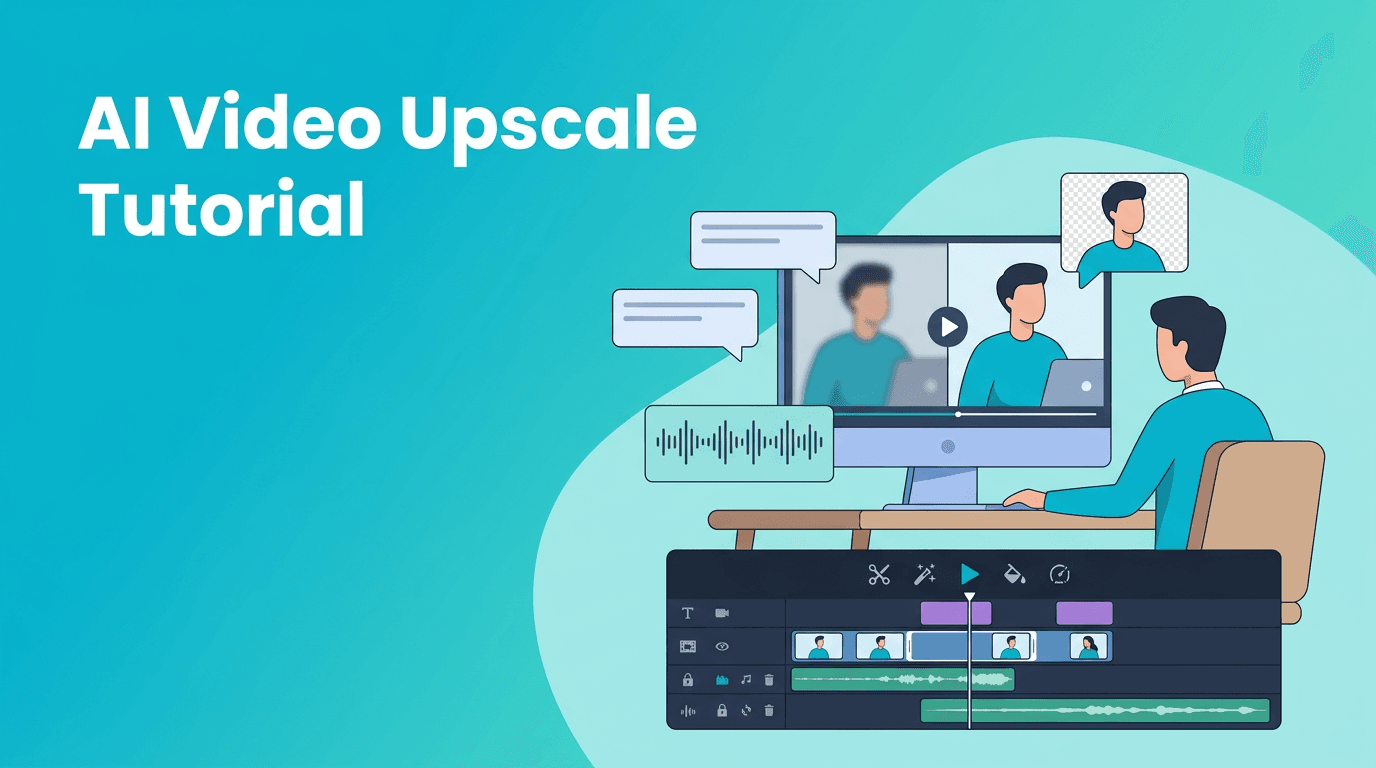
AI Video Upscale Tutorial: Faster Editing Workflows With Smarter AI
Learn a practical AI video upscale tutorial that also covers captions, background removal, audio cleanup, object removal, and faster editing workflows for creators.

By Movi AI Team
Movi AI Editorial Team
If soft footage, noisy audio, and repetitive edits are slowing you down, ai video upscale can be the fastest place to start. In this tutorial, you'll learn a practical AI-powered editing workflow that helps creators sharpen clips, automate captions, remove distractions, and finish videos faster than a fully manual process.
Why AI video upscale matters in a modern editing workflow
For many creators, the biggest bottleneck is not creativity, it is cleanup. You may have a great talking-head clip, product demo, or short-form video idea, but the raw footage needs work. AI video editing tools can improve resolution, stabilize the production value, and reduce time spent on repetitive fixes. Instead of treating AI as a gimmick, think of it as a practical assistant inside your editing process.
- Use ai video upscale when footage looks soft, compressed, or slightly low resolution.
- Use auto caption video tools when you need fast subtitles for Shorts, Reels, or tutorials.
- Use ai background remover video features when reshoots are impossible or backgrounds are distracting.
- Use ai video enhancement for sharpening, denoising, and improving visual clarity before final export.
- Use AI automation for repetitive tasks like silence trimming, caption timing, and rough cut generation.
"The best AI editing workflow does not replace your taste, it removes the busywork so your taste can show up sooner."
Before and after: what changes when you use AI
Before: You manually keyframe masks, type subtitles line by line, patch unwanted objects frame by frame, and spend extra time trying to rescue low-quality clips. After: AI handles first-pass cleanup in minutes, so you can focus on pacing, story, hooks, and polish. That is the real advantage of learning how to edit video with ai.
Manual editing vs AI-assisted editing
- Manual workflow: More control from the start, but slower for repetitive fixes.
- AI-assisted workflow: Faster setup and cleanup, then manual refinement where creative judgment matters.
- Best use case for manual editing: Highly stylized commercial work, frame-perfect visual effects, or advanced compositing.
- Best use case for AI workflows: YouTube videos, social clips, explainers, tutorials, product content, and rapid publishing schedules.
Step 1: Start with ai video upscale and enhancement
Open your clip and inspect the problem first. Is the footage blurry, compressed, noisy, or poorly lit? Begin with ai video upscale and related ai video enhancement features before making detailed edits. Improving base quality early gives better results later for captions, object removal, and exports.
- Import the source clip and duplicate it so you can compare versions.
- Apply upscale only as much as needed. Over-processing can create unnatural sharpness.
- If available, combine upscale with denoise and face or subject enhancement.
- Preview text, skin, edges, and motion. These areas reveal whether enhancement looks natural.
- Export a short test segment before processing the full timeline.
Practical tip for YouTubers
If you are mixing camera footage with archived clips, screen recordings, or old social videos, upscale the weaker clips first. This creates a more consistent viewing experience across the whole edit.
Step 2: Remove the background without masking by hand
Background cleanup is one of the clearest time-saving wins in ai video editing. With an ai background remover video workflow, you can isolate a speaker, replace a messy room, or create cleaner promo content without rotoscoping every frame.
- Choose clips with clear subject separation for the best automatic cutout.
- Check hair, hands, and fast movement, then refine only the problem frames.
- Replace the background with a simple studio look, blurred scene, or branded visual.
- Add a subtle shadow or edge softness so the cutout feels more realistic.
Step 3: Generate captions automatically and clean them up fast
If you publish short-form content, auto caption video tools are almost essential. AI can transcribe spoken audio, time the subtitles, and create a first draft in minutes. You still need a quick review, but the time savings are significant compared with manual typing.
- Run automatic transcription after basic audio cleanup for better accuracy.
- Edit names, brand terms, and technical words manually.
- Keep caption lines short for mobile viewing.
- Highlight key words in on-screen text for better retention.
- Match caption style to platform, especially for Shorts, Reels, and TikTok-style edits.
Step 4: Remove unwanted objects and distractions
A stray microphone, wall mark, passerby, or product label can ruin an otherwise usable shot. AI object removal helps recover clips that would normally need a reshoot. This is where an ai video editor can save both time and budget.
- Mark the unwanted object clearly and preview how the fill behaves during motion.
- Use the cleanest frames as reference if your editor supports it.
- Keep expectations realistic. Small distractions are easier than large moving subjects.
- After removal, add a slight grain or texture pass if needed to blend the repair naturally.
Step 5: Enhance audio before fine editing
Good video can survive average visuals, but weak audio often loses viewers immediately. AI tools can reduce background noise, improve vocal presence, level volume, and remove hum. Do this early so your captions and pacing decisions are based on cleaner sound.
- Reduce steady noise like fans or room hiss.
- Boost speech clarity without making voices sound metallic.
- Normalize loudness across clips so the timeline feels consistent.
- Cut long silences automatically, then review transitions by ear.
When AI audio tools help most
They are especially useful for solo creators recording in untreated rooms, podcast-style interviews, tutorials, and voiceovers captured on phones.
Step 6: Automate repetitive editing tasks
The hidden value of how to edit video with ai is not just flashy effects. It is the removal of repetitive labor. Rough cut detection, silence trimming, auto reframing, scene detection, smart resizing, and template-based edits can reduce hours of manual timeline work.
- Use scene detection to split long recordings into usable segments.
- Use silence removal for talking-head videos and courses.
- Use auto reframe to adapt one edit for vertical, square, and horizontal formats.
- Use AI-generated B-roll suggestions or prompt-based visuals to fill gaps faster.
- Batch process multiple clips when creating series content.
Want a faster mobile AI editing workflow?
*Movi AI* helps creators generate and refine videos from text, images, and existing footage. Use AI-powered creation features to move from idea to polished video faster.
Download Movi AIA simple AI editing workflow you can follow today
- 1. Import footage and sort clips by quality.
- 2. Apply ai video upscale and enhancement to weak clips first.
- 3. Clean audio and normalize levels.
- 4. Generate captions automatically and correct key terms.
- 5. Remove background or distracting objects where needed.
- 6. Use automation for silence cuts, reframing, and rough segmentation.
- 7. Finish manually with pacing, music, graphics, and final color decisions.
This hybrid method gives you the best of both worlds: AI handles the first 70 to 80 percent of technical cleanup, while you keep creative control over storytelling and final polish.
How Movi AI fits into faster content production
If you want the best ai video editor app experience on mobile, *Movi AI* is built for fast creation. You can generate videos from text prompts, images, existing clips, or speech, then use those outputs inside a broader content workflow. It is especially useful when you need more content variations without expanding your editing time.
Final takeaway on ai video upscale and smarter editing
Learning ai video upscale is a practical entry point into modern AI post-production. Once you see how much time you save on quality fixes, captions, cleanup, and repetitive edits, it becomes easier to build a workflow that is both faster and more consistent. Use AI for the technical heavy lifting, then spend your energy where it matters most, making the video more watchable and more memorable.
Frequently Asked Questions
What is ai video upscale?
AI video upscale uses machine learning to increase perceived video resolution and detail. It can help older, compressed, or low-quality clips look sharper before export.
How do I edit video with AI without losing control?
Use AI for first-pass tasks like upscaling, captions, noise reduction, and object removal, then refine the final edit manually. This keeps your creative decisions intact while saving time.
What is the best ai video editor app for creators?
The best app depends on your workflow, but creators often look for fast generation, enhancement tools, and flexible input options. *Movi AI* is a strong option for creating videos from text, images, speech, and existing footage.
Can auto caption video tools replace manual subtitles?
They are excellent for generating a fast first draft, but you should still review spelling, names, and timing. A quick manual pass usually produces the best result.
Does ai background remover video work on moving subjects?
Yes, but results depend on subject separation, lighting, and motion. It works best when the person stands out clearly from the background and problem frames are refined manually.
Movi AICreate stunning AI videos in seconds!
Turn your ideas into professional videos with the #1 AI video maker.
Download Movi AI