AI Video Scene Consistency for Faceless YouTube Channels: A Practical Prompt Workflow
Learn a practical AI video scene consistency workflow for faceless YouTube channels. Keep characters, props, and visual tone stable across shots while editing faster with AI.

By Movi AI Team
Movi AI Editorial Team
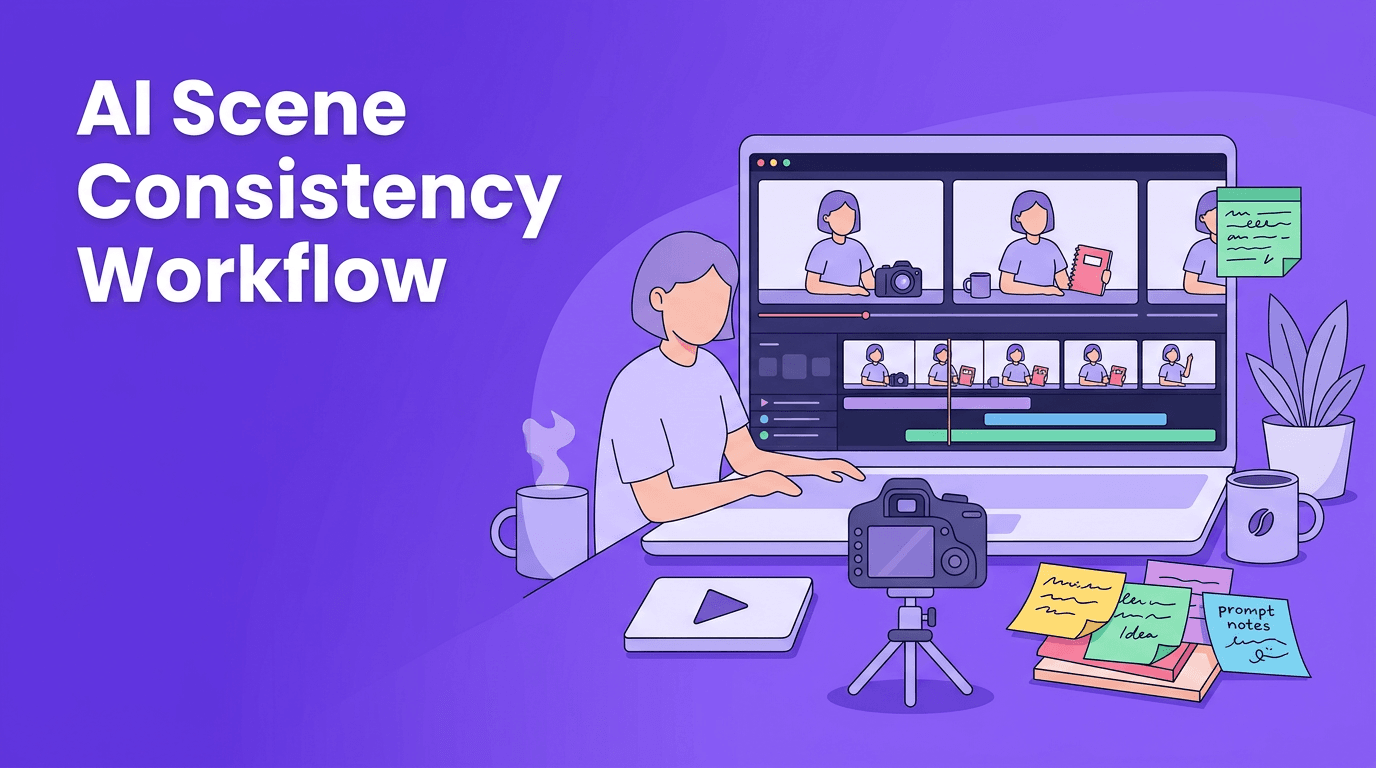
If your AI videos look different from shot to shot, AI scene consistency becomes the missing part of your workflow. For faceless YouTube creators, stable characters, props, framing, and tone can make the difference between a polished channel and a chaotic one.
Why AI scene consistency matters for faceless channels
Faceless YouTube videos often rely on repeated visual motifs: the same room, desk setup, product, animated subject, or explainer style. When one shot suddenly changes the subject's clothing, camera angle, lighting logic, or object placement, viewers notice. AI scene consistency helps you protect trust, improve retention, and reduce time spent regenerating clips.
- Before: every generated shot feels like it came from a different video
- After: scenes feel connected, intentional, and easier to edit together
- Time saved: fewer retries, less patchwork editing, and faster final assembly
The core workflow: build a continuity packet
Instead of prompting each clip from scratch, create a simple continuity packet before you generate anything. This is a reusable reference containing the subject description, key props, environment details, shot rules, and motion rules.
What to include in your continuity packet
- Subject lock: age range, outfit, hairstyle, expression, posture
- Environment lock: room type, furniture, object placement, screen setup
- Camera lock: lens feel, framing, angle height, movement limits
- Lighting lock: time of day, softness, shadow direction, intensity
- Color lock: warm, neutral, cinematic, documentary, minimal contrast
- Motion lock: slow pan, static composition, gentle hand movement, no dramatic swings
"Consistency is what makes AI output feel directed instead of random."
Step-by-step tutorial for more consistent AI scenes
1. Start with one master frame
Generate one anchor shot first. This becomes your visual north star. Do not move to multiple scenes until you have a frame that clearly defines your subject, environment, and tone.
2. Reuse the same structural prompt
Keep the first 70 to 80 percent of your prompt unchanged across shots. Only swap the action or composition detail. This small habit improves AI scene consistency more than endlessly rewriting prompts.
3. Change one variable at a time
If you need a close-up after a wide shot, only change framing. If you also change wardrobe, lighting, and setting, continuity breaks quickly. Isolate changes so your outputs stay connected.
4. Generate short sequences, not single isolated clips
Create 3 to 5 related shots in one batch using the same continuity packet. This gives you edit options while preserving visual cohesion.
5. Use Movi AI to iterate from existing visuals
With *Movi AI*, you can build from text prompts, images, or existing video material. That makes it easier to preserve visual references when refining scenes for faceless explainers, product breakdowns, and story-led YouTube content.
Want a faster way to test repeatable video ideas?
Use *Movi AI* to generate scenes from text, images, or video inputs and refine your visual continuity faster.
Download Movi AIManual editing vs AI scene consistency workflow
In a manual workflow, creators often fix continuity problems after generation by cropping, color correcting, masking, or hiding mismatched shots with overlays. That can work, but it adds friction. An AI scene consistency workflow solves more of the problem upstream, before the edit gets messy.
- Manual approach: fix errors after export, patch mismatches, spend more time hiding flaws
- AI-first approach: define constraints early, generate cleaner source clips, reduce correction work
- Best use case: channels producing repeated explainer, finance, motivation, education, or story videos
Common mistakes that break continuity
- Changing subject description wording too aggressively between clips
- Adding trendy effects before your base scene is stable
- Switching aspect ratio or framing logic mid-sequence
- Ignoring props like laptops, mugs, books, or screens that should remain visible
- Mixing multiple visual styles in one short sequence
A simple prompt template you can reuse
Try a structure like this: subject + setting + camera + lighting + action + style restraint. Example: 'A focused presenter at a wooden desk with dual monitors, medium shot, eye-level camera, soft window light from the left, subtle hand movement while explaining a chart, clean documentary realism, maintain same outfit and room layout as previous shot.'
Final takeaway
If your faceless channel depends on repeatable visuals, AI scene consistency is not a minor detail. It is a production system. Build a continuity packet, lock your core prompt structure, and iterate carefully. The result is a smoother editing process and videos that feel far more professional.
Frequently Asked Questions
How do I keep AI video scenes consistent across multiple shots?
Start with one master frame, reuse the same core prompt, and only change one variable at a time such as framing or action.
What is AI scene consistency in video creation?
It means maintaining stable subjects, props, lighting, camera logic, and visual tone across generated clips so the final edit feels unified.
Is AI scene consistency useful for faceless YouTube channels?
Yes. Faceless channels often repeat environments and subjects, so continuity helps videos look more professional and easier to edit together.
Can Movi AI help with scene consistency?
Yes. Movi AI lets you create videos from text, images, and existing footage, which makes iterative visual refinement easier.
Movi AICreate stunning AI videos in seconds!
Turn your ideas into professional videos with the #1 AI video maker.
Download Movi AI