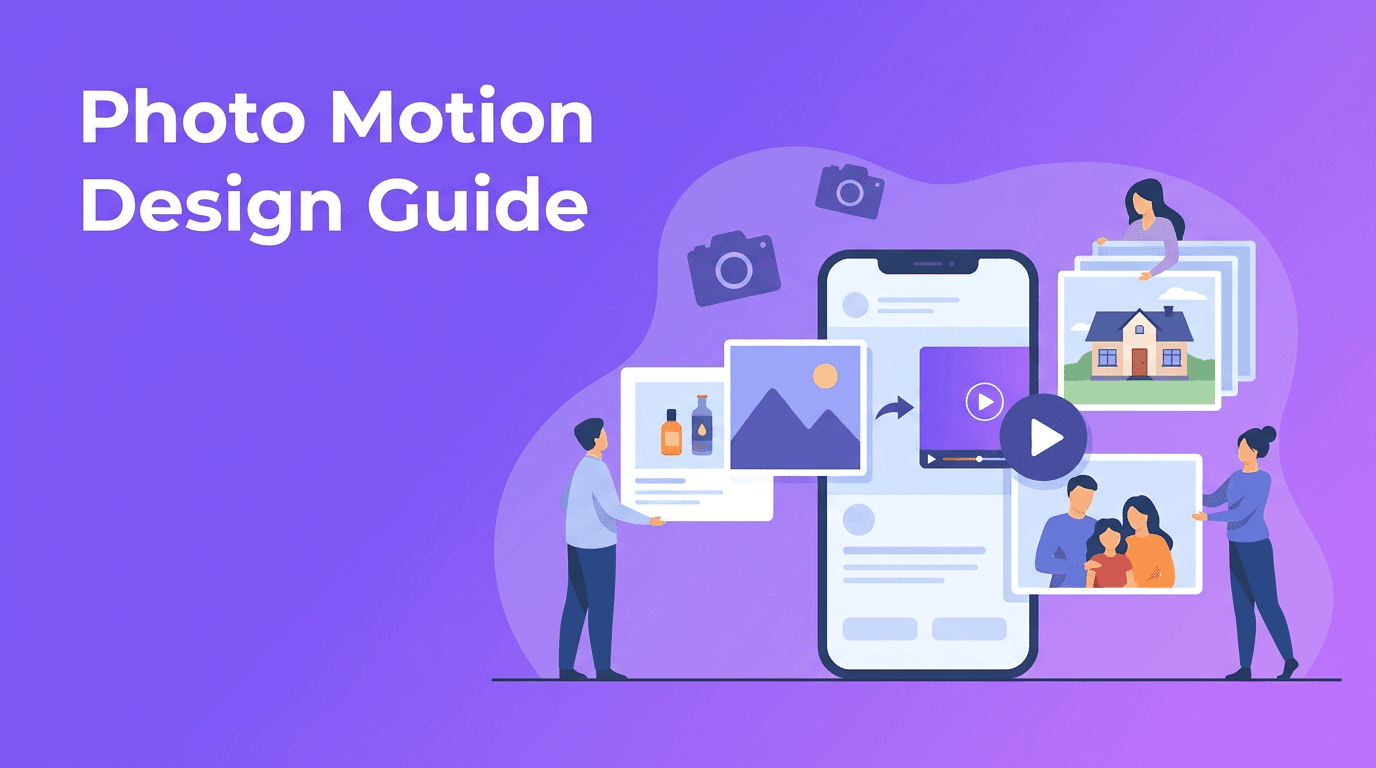
Photo Motion Design: How to Create Scroll-Stopping Clips From One Still
Photo motion design helps you turn a single image into engaging short-form content for products, listings, memories, and social posts, using simple AI-powered movement techniques.

By Movi AI Team
Movi AI Editorial Team
Photo motion design is a smart way to transform one still image into a video that feels alive, polished, and ready to share. Whether you create product content, property marketing, family memory reels, or social posts, the goal is simple: add believable movement that guides the viewer's eye and makes a photo more engaging.
What photo motion design actually means
In simple terms, photo motion design uses AI-assisted movement and camera-style effects to make a still image feel dynamic. Instead of keeping the entire frame frozen, the video can simulate a slow push-in, a cinematic pan, layered depth, or selective motion in areas like hair, clouds, fabric, water, lights, or background elements.
- Cinematic pan moves the frame sideways to reveal details gradually.
- Zoom creates focus and emotional intensity by moving closer or farther away.
- Parallax separates foreground and background so the image feels deeper.
- Character animation adds subtle movement to people, faces, or body posture when appropriate.
"A single strong photo can tell a story. Motion simply gives that story a pulse."
Why one photo can outperform a static post
A moving visual usually earns more attention than a still image in fast-scrolling feeds. Photo motion design gives you a lightweight way to repurpose assets you already have, instead of planning a full shoot. That is especially useful for small businesses, photographers, real estate agents, and creators who need more content without more production time.
Best situations for motion from a single image
- Product photography for launches, seasonal promos, and marketplace ads.
- Real estate listings that need more presence on Reels, Stories, or Shorts.
- Personal memories like wedding portraits, travel photos, and family archives.
- Social media carousels and reels built from existing photos instead of fresh footage.
Use case 1: Product photography that feels premium
If you sell skincare, jewelry, fashion, gadgets, or home goods, motion helps a product shot feel more luxurious. Start with a crisp hero image, then apply a subtle zoom, foreground lift, or angled pan. This creates a mini commercial from a single asset and works especially well for paid social, product pages, and launch teasers.
How to make product shots look better
- Use a high-resolution image with clear lighting and strong subject separation.
- Keep movement slow and intentional so the item stays premium, not gimmicky.
- Highlight one selling point, such as texture, packaging, shine, or scale.
- Add short on-screen copy for price, benefits, or limited-time offers.
Use case 2: Real estate visuals that feel like mini tours
A still room photo can become a mini walkthrough when you add directional motion. A gentle push through a living room, a layered parallax effect in a kitchen, or a smooth upward reveal on an exterior shot can help buyers picture the space more clearly. This is a fast way to create listing content when you only have photography on hand.
Best motion styles for listings
- Wide room pans for open-plan spaces.
- Push-ins toward fireplaces, kitchen islands, or window views.
- Parallax depth for exterior shots with landscaping and entry paths.
- Vertical framing for Stories and Reels promotion.
Use case 3: Personal memories and old photo storytelling
Old family portraits, childhood snapshots, and travel images gain emotional power when motion is added carefully. A slow zoom into a smiling face or a layered move through a background can make memory content feel intimate and immersive. For older images, restore sharpness first if needed, then keep animation subtle so the original mood stays intact.
Tips for older photos
- Scan at the highest quality available before editing.
- Clean up scratches, dust, and faded contrast before applying motion.
- Avoid over-animating faces if the original image is soft or damaged.
- Use music or voiceover to add context and emotion.
Use case 4: Social media content from your camera roll
Creators often have strong photos but not enough video. That is where photo motion design becomes practical. One portrait can become a Reel intro. One food shot can become a story ad. One travel image can become a teaser clip. Instead of waiting for your next shoot, you can build fresh short-form content from assets you already own.
What makes a source photo work well
The best results usually start with a photo that has a clear subject, visible depth, and enough detail for movement. Images with strong foreground-background separation are especially useful because they support parallax and more natural camera motion.
- Choose images with sharp focus on the main subject.
- Look for layering, such as a person in front of a background or a product on a surface.
- Avoid cluttered scenes where the subject blends into everything around it.
- Use the correct crop for the platform before generating the final clip.
Turn your photos into motion in minutes
Use *Movi AI* to create eye-catching videos from photos, prompts, or existing clips. It is a simple way to build product promos, listing reels, and memory videos without complex editing.
Download Movi AISimple workflow for better results with Movi AI
With *Movi AI*, you can start from an image and generate polished motion quickly. Upload your photo, choose the direction and feel of movement, test a few animation styles, and refine the result for your platform. This is especially helpful when you want to make multiple versions for ads, listings, or social channels.
- Start with your best source image.
- Pick a motion style, such as pan, zoom, parallax, or character motion.
- Keep the clip short so the movement feels clean and repeatable.
- Export versions sized for Reels, TikTok, Shorts, or listing presentations.
Common mistakes to avoid
- Making movement too fast, which can look unnatural.
- Using low-quality photos with compression artifacts.
- Animating every area instead of guiding attention to one focal point.
- Choosing dramatic motion for serious memory or luxury property content.
- Ignoring platform crop and safe text areas.
Final takeaway
Photo motion design gives you a practical middle ground between a static image and a full video shoot. With the right source photo, subtle movement, and a clear purpose, you can create content that feels more cinematic, emotional, and effective for sales or storytelling. For anyone working with existing images, it is one of the easiest ways to get more value from every photo.
Frequently Asked Questions
How do I animate a still photo naturally?
Use subtle movement like a slow pan, push-in, or parallax effect. Start with a sharp image and avoid overly fast motion.
What kind of photos work best for cinematic motion?
Photos with a clear subject, visible depth, and clean separation between foreground and background usually work best.
Can I use one product photo to make a short promo video?
Yes. A single high-quality product image can become a short promo with zoom, layered depth, text, and music.
Are old family photos good for motion effects?
Yes, especially if they are scanned clearly and lightly restored first. Gentle animation usually works better than dramatic movement.
Movi AICreate stunning AI videos in seconds!
Turn your ideas into professional videos with the #1 AI video maker.
Download Movi AI