AI Video Upscale Tutorial: Faster Editing Workflows for Creators
Learn an actionable AI video upscale workflow for creators, from cleanup and color fixes to captions and background removal, plus how AI editing compares with manual editing.
By Movi AI Team
Movi AI Editorial Team
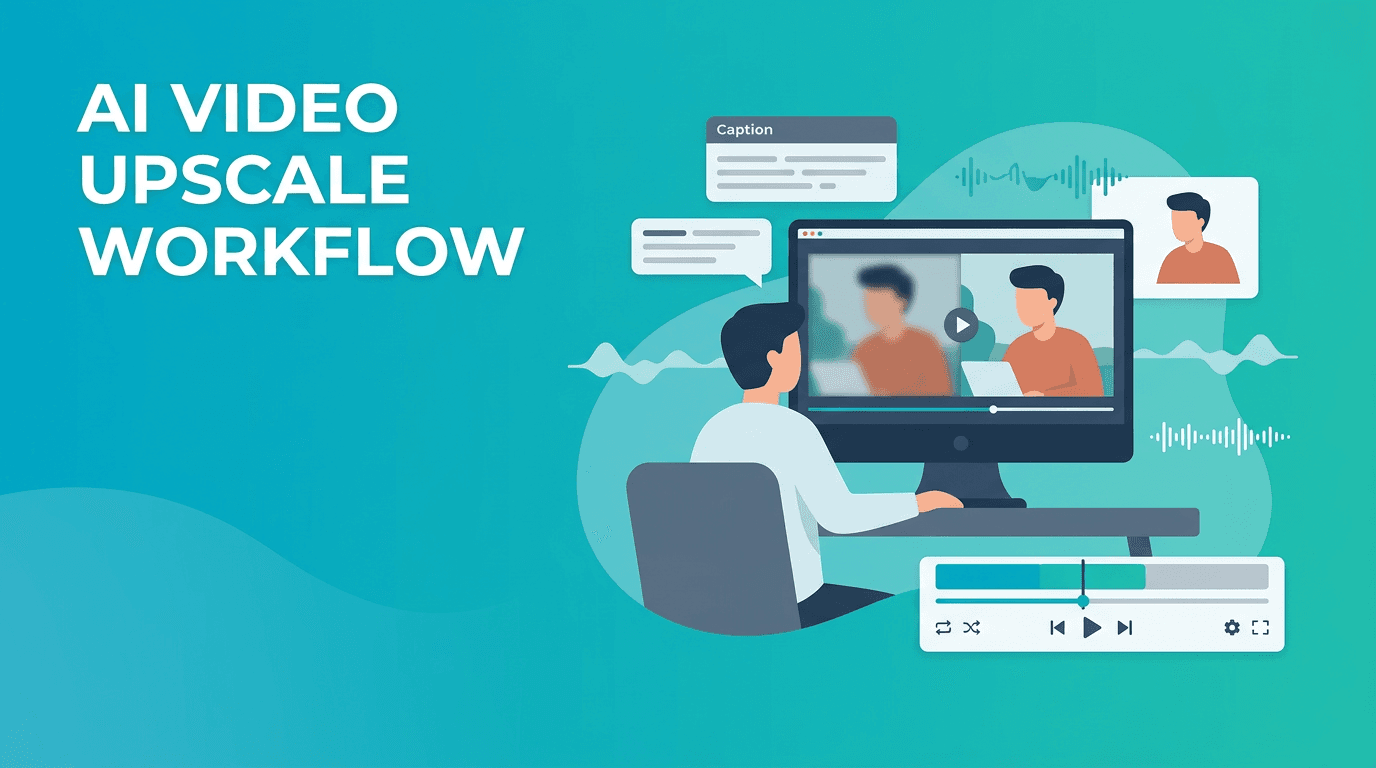
AI video upscale is one of the fastest ways to rescue weak footage and speed up post-production. If you create YouTube videos, shorts, tutorials, or client content, learning a practical AI workflow can help you sharpen clips, clean audio, remove distractions, and automate repetitive edits without spending hours frame by frame.
Why creators start with AI video upscale
Many editors think of AI as a gimmick, but in daily production it solves a simple problem: too many fixes, not enough time. A smart workflow lets you improve resolution, apply basic color correction, generate captions, isolate subjects, and enhance audio in minutes. That means you spend more time on storytelling and less time on technical cleanup.
- Before: soft footage, noisy audio, cluttered backgrounds, and manual caption typing.
- After: sharper clips, cleaner sound, readable captions, and a shorter edit timeline.
- Best use cases: talking-head videos, product demos, tutorials, social clips, podcasts, repurposed archives.
Step 1: Audit the footage before you edit
Before applying any AI tool, review your clips and tag what actually needs improvement. Ask four questions: Is the video soft? Is the background distracting? Is the audio noisy? Do you need captions for retention? This prevents over-editing and helps you choose the right AI actions in the right order.
Create a quick fix checklist
- Mark clips that need upscaling because they were exported at low resolution or cropped heavily.
- Identify scenes that need color balancing because skin tones or exposure look inconsistent.
- Flag shots that need background removal for cleaner framing or product focus.
- Note moments where object removal can eliminate distractions like cables, signs, or random passersby.
- List scenes that need auto captions for accessibility and better watch time.
- Highlight clips with weak dialogue so you can apply AI audio enhancement early.
Step 2: Use AI for color grading without overdoing it
A practical ai video editing workflow starts with color cleanup, not fancy looks. Use AI to balance exposure, recover contrast, and normalize white balance across clips. Then make small manual adjustments to protect skin tones and keep the final image natural.
Simple color grading workflow
- Apply AI scene analysis to detect underexposed or uneven clips.
- Use automatic correction for contrast, highlights, shadows, and white balance.
- Compare corrected shots side by side so your sequence feels consistent.
- Add a light creative grade only after the footage is technically balanced.
- Save your preferred settings as a reusable preset for future edits.
"The best AI edits do not look automated. They simply remove friction so the story comes through faster."
This is where AI beats full manual correction for fast-turnaround content. Instead of balancing every clip from scratch, you let the system handle the repetitive baseline work and then refine only the shots that truly need attention.
Step 3: Remove backgrounds and distracting objects
If you record in messy rooms or crowded spaces, ai background remover video tools can instantly make your content cleaner. This is especially useful for explainers, reaction videos, product shots, and mobile-first content where the subject should stay dominant on screen.
When to use background removal vs object removal
- Use background removal when the full environment is distracting and you want a clean or branded backdrop.
- Use object removal when most of the shot is fine, but one element pulls attention away.
- Check edges around hair, hands, glasses, and product outlines before exporting.
- If the AI cutout looks too sharp, soften it slightly so it blends more naturally.
Apps like *Movi AI* help creators quickly transform existing clips or generate new visual scenes, which is useful when reshooting is not practical. For social content, that can save an entire production day.
Step 4: Improve resolution with AI video enhancement
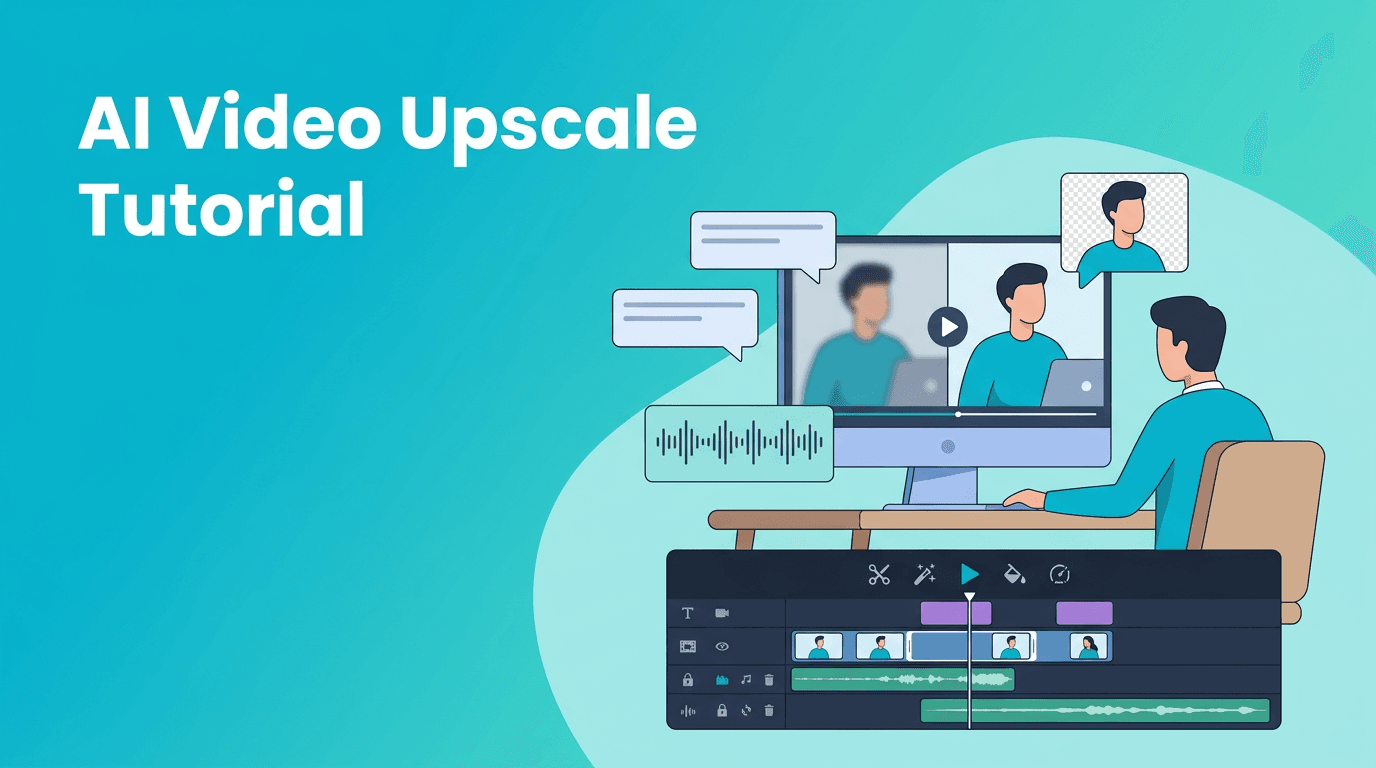
Now return to the core task: ai video upscale. If your source footage is low resolution, digitally cropped, or pulled from older devices, AI can reconstruct detail and improve clarity better than standard scaling. This overlaps with ai video enhancement, but the key is to upscale only where it adds visible value.
Best practices for sharper results
- Upscale final hero shots, screen recordings, archive clips, and zoomed-in crops first.
- Do not upscale every clip automatically if the original already looks clean.
- Preview faces, text, and edges at 100 percent to catch artificial sharpening.
- Pair upscaling with mild denoise for compressed footage.
- Export a short sample before processing a full timeline.
For creators asking how to edit video with ai, this is one of the easiest wins. Manual sharpening often adds halos and noise, while AI models can preserve texture more intelligently when used carefully.
Step 5: Add captions automatically for reach and retention
An auto caption video workflow is no longer optional for short-form content. Captions help viewers follow your message in silent playback, increase accessibility, and make educational content easier to scan.
- Generate captions automatically from speech recognition.
- Edit names, brand terms, and technical words before export.
- Break long sentences into shorter caption groups for mobile reading.
- Highlight keywords in captions to support retention.
- Reposition subtitle blocks to avoid covering faces or products.
Manual captioning is accurate but slow. AI captions get you most of the way there in minutes, and then you only spend time on cleanup. That is a much better tradeoff for creators publishing frequently.
Step 6: Enhance audio before final export
Viewers will forgive average visuals before they forgive bad sound. Use AI to remove hiss, reduce room echo, level dialogue, and separate speech from background noise. This creates a more professional result even when the footage was recorded in imperfect conditions.
Fast audio improvement checklist
- Run dialogue enhancement first.
- Reduce constant noise like fans or traffic.
- Tame harsh peaks with light compression.
- Match loudness across clips so the edit feels consistent.
- Listen with headphones before approving the final mix.
AI editing workflow vs manual editing
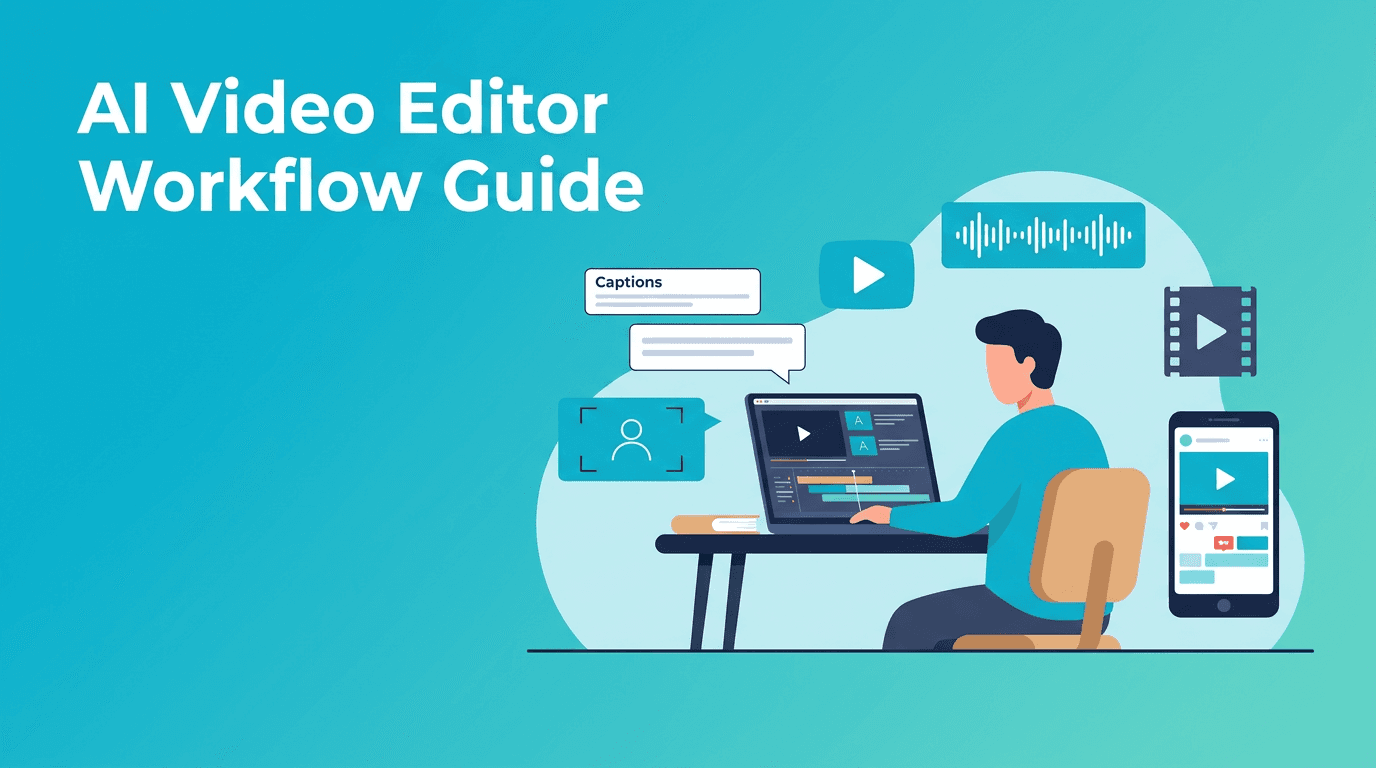
The biggest difference between AI and traditional editing is not quality alone, it is time allocation. Manual editing gives precise control but consumes hours on repetitive tasks. AI handles detection, cleanup, and first-pass corrections, so the editor can focus on pacing, story structure, and creative decisions.
- Manual editing excels at: detailed shot matching, complex compositing, and highly stylized finishing.
- AI editing excels at: batch fixes, caption generation, noise cleanup, object detection, and repetitive adjustments.
- Best hybrid workflow: let AI create the first clean pass, then finalize manually where nuance matters most.
If you are searching for the best ai video editor app, the right choice is usually the one that reduces the most bottlenecks in your specific workflow. For many creators, that means combining generation, enhancement, cleanup, and repurposing tools in one place instead of juggling multiple apps.
Speed up your next edit with Movi AI
Create videos from text, images, or existing clips, then streamline your production workflow with AI-powered creative tools designed for faster content creation.
Download Movi AIA repeatable AI editing routine for weekly creators
- Import footage and sort clips by quality issues.
- Run AI color correction on the full batch.
- Apply background or object removal only where needed.
- Process ai video upscale on weak clips and cropped shots.
- Generate and edit captions.
- Enhance dialogue and normalize audio.
- Finish with manual pacing, branding, transitions, and export settings.
This kind of routine is ideal for YouTubers, social media managers, and editors handling large content calendars. It turns AI into a reliable assistant instead of a random effect generator.
Frequently Asked Questions
What is AI video upscale?+
AI video upscale uses machine learning to increase video resolution and improve perceived detail more intelligently than basic scaling.
How do I edit video with AI faster?+
Start with repetitive tasks such as color correction, captions, background removal, audio cleanup, and upscaling. Then do manual refinements only where needed.
Can AI add captions to video automatically?+
Yes. Many AI tools can transcribe speech and create captions automatically, which you can then review and correct before publishing.
Is AI video enhancement better than manual sharpening?+
In many cases, yes. AI enhancement can preserve detail and reduce artifacts more effectively than simple sharpening filters, especially on low-quality footage.
Create stunning AI videos in seconds!
Turn your ideas into professional videos with the #1 AI video maker.
Download Movi AI