How to Edit Video With AI: A Practical Workflow for Faster, Smarter Results
Learn how to edit video with AI using practical workflows for color grading, background removal, captions, audio cleanup, and repetitive task automation.
By Movi AI Team
Movi AI Editorial Team
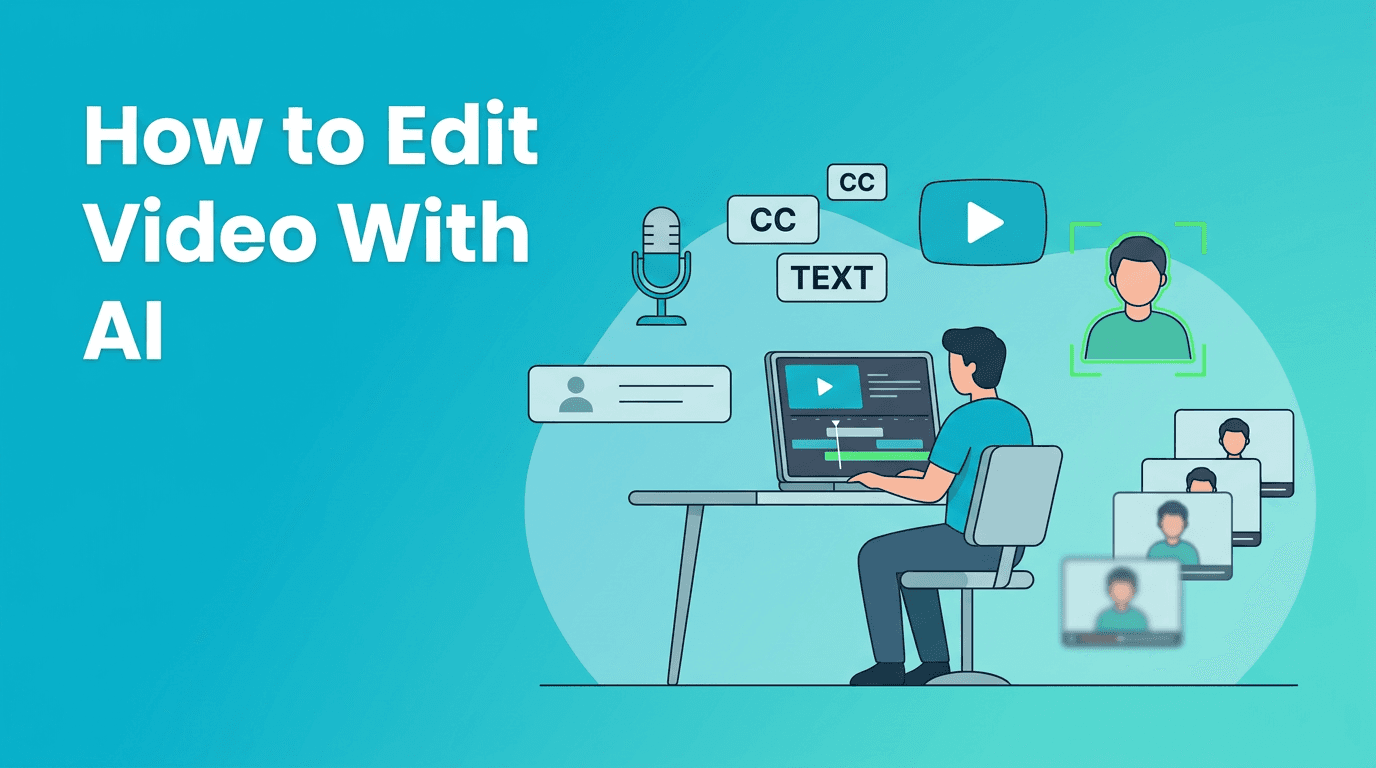
If you are learning how to edit video with AI, the biggest win is not replacing creativity. It is removing slow, repetitive tasks so you can spend more time on pacing, storytelling, and polish. In this tutorial, you will learn a practical AI editing workflow for color grading, background removal, captioning, audio cleanup, object removal, and quality enhancement.
Why AI editing beats manual editing for repetitive work
Manual editing still matters for taste and final judgment, but AI handles many technical tasks faster. A traditional workflow might require separate masking, keyframing, transcript typing, noise cleanup, and export tests. An ai video editor can analyze footage, detect subjects, generate captions, improve clarity, and suggest corrections in minutes instead of hours.
- Manual editing is best for fine creative choices, custom timing, and brand-specific style.
- AI editing is best for repetitive cleanup, first-pass edits, speed, and batch processing.
- The smartest workflow is hybrid editing: let AI do the rough technical work, then refine manually.
Step 1: Start with footage review and AI-assisted organization
Before touching effects, import your clips and let AI sort the material. Many tools can detect faces, speech sections, scene changes, and highlight moments. This is the first stage of how to edit video with AI effectively, because good organization cuts editing time right away.
Before and after
- Before: You scrub through every clip manually and label sections by hand.
- After: AI groups similar shots, identifies talking segments, and helps you jump directly to usable takes.
In *Movi AI*, you can build videos from prompts, images, or existing footage, which is useful when you want to quickly test alternate intros, B-roll ideas, or visual replacements without starting from zero.
Step 2: Use AI for color grading and shot matching
Color correction usually begins with balancing exposure, white balance, contrast, and skin tones. AI tools speed this up by analyzing the clip and applying a balanced starting grade. This is especially helpful when one scene has mixed lighting or your camera settings changed mid-shoot.
- Apply an AI auto-correct pass to normalize exposure and white balance.
- Use shot matching to make adjacent clips look consistent.
- Adjust saturation and skin tones manually after the AI pass.
- Save the grade as a preset for future episodes or client projects.
The time savings here are real. Instead of correcting every clip from scratch, you begin with a solid baseline and only fine-tune the shots that need extra attention.
Step 3: Remove or replace backgrounds faster
An ai background remover video workflow is ideal for talking-head content, tutorials, product explainers, and shorts. Instead of drawing masks frame by frame, AI detects the subject and separates it from the background automatically.
Practical technique
- Choose a clip with a clearly visible subject.
- Run the AI background removal tool.
- Check edges around hair, hands, and fast motion.
- Replace the background with a clean color, branded scene, or generated visual.
- Add a subtle shadow so the subject looks grounded in the new scene.
This technique works well when you need cleaner visuals for YouTube intros, course videos, or social ads. It also reduces the need for a perfect filming setup.
Step 4: Auto-generate captions and fix them quickly
Creating an auto caption video manually is one of the most time-consuming editing jobs. AI speech recognition can generate captions in minutes, often with speaker timing and punctuation already mapped to the timeline.
- Generate captions automatically from the audio track.
- Scan the transcript for names, jargon, and product terms.
- Shorten long subtitle lines for mobile viewing.
- Highlight key words for retention on short-form videos.
"AI does not replace the editor. It gives the editor more time to make better creative decisions."
If your audience watches on mute first, captions can improve retention immediately. For creators publishing often, this is one of the fastest wins in how to edit video with AI.
Step 5: Improve sharpness with AI video enhancement and upscale tools
Not every clip needs restoration, but older footage, cropped shots, and compressed exports often benefit from ai video enhancement. If the source is soft or low resolution, ai video upscale tools can add perceived detail, reduce artifacts, and make footage more usable for modern platforms.
When to use AI upscale
- You cropped in too far on a 1080p clip.
- You need older archive footage in a higher-resolution edit.
- A social clip was downloaded with compression artifacts.
- You want cleaner edges before adding text overlays.
Be selective. AI enhancement works best as a repair step, not a magic fix for every bad shot. Preview skin texture, text, and fast motion before applying it to a full sequence.
Step 6: Remove unwanted objects without rebuilding the shot
AI object removal helps when a distracting sign, cable, microphone edge, or passerby pulls attention from the subject. Instead of detailed manual paint work, AI can analyze surrounding pixels and fill the area more quickly.
- Pause on the clip and identify the distraction.
- Mask only the object you want removed.
- Track the area if the camera moves.
- Review the repaired section at full speed and frame by frame.
- Cut away to B-roll if the repair looks unnatural during heavy motion.
This is one of the clearest examples where an ai video editor saves time. Manual cleanup can take a long time, while AI often gets you close enough with much less effort.
Step 7: Clean up audio with AI before final export
Viewers forgive average visuals sooner than bad sound. AI audio tools can reduce background noise, level voices, remove hum, and enhance speech clarity. For tutorials, interviews, and voiceovers, this may be the most important quality upgrade in your workflow.
- Run noise reduction on clips with fans, traffic, or room hum.
- Use voice enhancement to improve clarity and presence.
- Normalize loudness so different clips feel consistent.
- Remove filler pauses carefully if you want a tighter pace.
For creators producing frequent content, AI audio cleanup can turn a usable recording into a polished one without deep audio engineering skills.
Step 8: Automate repetitive editing tasks
The best part of how to edit video with AI is automation. Once your basic style is set, AI can help apply repeated actions across multiple videos. This includes resizing for different platforms, generating social cutdowns, creating title variations, and reusing brand-safe visual styles.
- Batch-create captions for multiple episodes.
- Auto-resize landscape videos into vertical versions.
- Generate short highlight clips from long interviews.
- Apply repeated intro and outro structures automatically.
- Create alternate visuals in *Movi AI* from text prompts or existing clips.
Want a faster AI editing workflow?
Use *Movi AI* to create and enhance videos from text, images, or existing footage, then speed up repetitive editing tasks with AI-powered creation tools.
Download Movi AIAI editing workflow vs manual editing: a realistic comparison
- Color grading: Manual gives full control, AI gives a fast first pass.
- Background removal: Manual masking is precise, AI is much faster for standard shots.
- Captions: Manual is accurate but slow, AI is fast and easy to correct.
- Upscaling: Manual sharpening is limited, AI can recover better perceived detail.
- Object removal: Manual cleanup is meticulous, AI handles simple distractions quickly.
- Audio enhancement: Manual audio repair is powerful, AI is faster for everyday cleanup.
For most creators, the winning setup is simple: use AI to build the rough technical version, then use your editing judgment to refine timing, style, and story. That is how you get speed without sacrificing quality.
Final tips for choosing the best AI video editor app
When comparing tools, look for accuracy, export quality, timeline speed, and how many repetitive tasks the app can actually remove from your process. The best ai video editor app is not the one with the most features. It is the one that saves you the most time while keeping your videos consistent and publish-ready.
- Pick tools that fit your actual content type, such as talking-head videos, tutorials, or short-form clips.
- Test caption accuracy, background edges, and audio cleanup before committing.
- Use AI suggestions as a starting point, not the final answer.
- Build repeatable presets so each new edit gets faster.
Frequently Asked Questions
How to edit video with AI for beginners?+
Start with captions, audio cleanup, and basic color correction. These are easy wins that save time without changing your creative style too much.
What is the best AI video editor app for content creators?+
The best app depends on your workflow, but creators should look for fast captioning, enhancement tools, flexible exports, and easy reuse of templates or prompts.
Can AI improve low quality video?+
Yes, AI can enhance clarity, reduce noise, and upscale resolution. Results are best when the original footage is usable but needs cleanup, not when it is severely damaged.
Does AI background remover video work without a green screen?+
In many cases, yes. AI can detect subjects and separate them from the background, though clean edges depend on lighting, motion, and subject contrast.
Create stunning AI videos in seconds!
Turn your ideas into professional videos with the #1 AI video maker.
Download Movi AI