AI Video Editing Tutorial: Smarter Workflows for Faster Results
Learn ai video editing with practical step-by-step tutorials for color grading, background removal, captions, upscaling, audio cleanup, and faster editing workflows.
By Movi AI Team
Movi AI Editorial Team
AI video editing is no longer just a shortcut for beginners. It is a practical way for creators, YouTubers, and editors to handle repetitive tasks faster while still keeping creative control. In this guide, you will learn how to edit video with AI for color grading, background cleanup, captions, object removal, audio enhancement, and workflow automation.
Why AI video editing saves so much time
Traditional editing often means repeating the same steps across dozens of clips. You adjust exposure shot by shot, type captions manually, clean up audio with multiple plugins, and mask unwanted objects frame by frame. With ai video editing, many of these steps become assisted or automated, which can cut hours from a typical edit.
- Manual workflow: More precise by default, but slower for repetitive corrections.
- AI-assisted workflow: Faster for first-pass edits, rough cuts, cleanup, and repetitive tasks.
- Best approach: Use AI for speed, then refine the final creative decisions yourself.
"AI does not replace the editor. It removes the tedious work so the editor can focus on storytelling."
Tutorial 1: Use AI for color grading
Color grading is one of the easiest places to start with an ai video editor. AI can analyze exposure, contrast, white balance, and skin tones, then apply a balanced correction across clips that were shot in different lighting conditions.
Step-by-step color grading workflow
- Import your footage and group clips from the same scene.
- Run an AI auto-correct or smart grade feature on the first clip.
- Compare the original and corrected version. Look for improved skin tone, balanced highlights, and more consistent shadows.
- Apply the correction to similar clips, then fine-tune saturation and contrast manually.
- Save the look as a preset for future edits.
Before: flat footage, mixed white balance, inconsistent brightness. After: cleaner tones, more balanced contrast, and a timeline that looks visually consistent in minutes instead of hours.
Tutorial 2: Remove backgrounds without manual masking
An ai background remover video workflow is ideal for talking-head clips, product explainers, and social content. Instead of drawing masks by hand, AI detects the subject and separates them from the background automatically.
How to get cleaner background removal
- Use clips with clear subject separation when possible.
- Run the AI background removal tool and preview edges around hair, hands, and fast movement.
- Replace the background with a clean color, image, or generated scene.
- Add a subtle shadow or blur so the subject feels grounded in the new composition.
- Review frame edges before exporting.
In *Movi AI*, creators can quickly turn prompts, images, and existing footage into polished visual scenes, which makes background replacement much faster when building explainers or short-form videos.
Tutorial 3: Improve resolution with AI video upscale
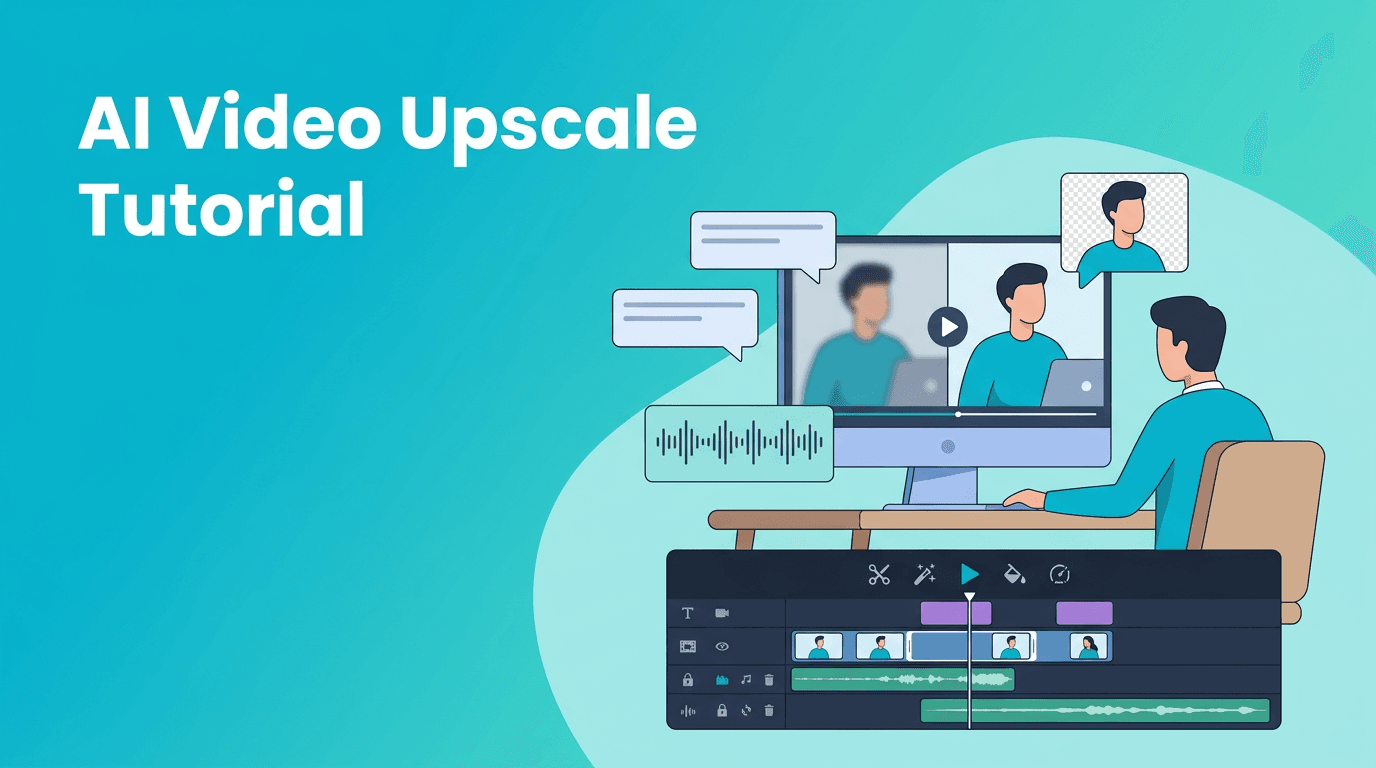
Older footage, cropped clips, and social reposts often look soft or pixelated. AI video upscale tools help restore clarity by sharpening details, improving textures, and increasing perceived resolution without re-shooting the scene.
When AI upscaling works best
- Low-resolution archive footage
- Screen recordings that need cleaner edges
- Vertical crops made from horizontal videos
- Product demos that need sharper text or UI elements
Use ai video enhancement carefully. Upscaling can improve clarity, but pushing it too far may create an unnatural over-sharpened look. Start with moderate settings, preview faces and text, then export a short test clip before processing the full sequence.
Tutorial 4: Create captions with auto caption video tools
If you publish for TikTok, YouTube Shorts, Instagram Reels, or tutorials, auto caption video features can save massive amounts of time. AI transcription generates subtitles automatically, then lets you correct names, jargon, and timing.
Caption workflow for better retention
- Generate captions automatically from your spoken audio.
- Correct brand names, technical terms, and punctuation.
- Break long lines into shorter readable phrases.
- Highlight important words for emphasis.
- Position captions where they do not block faces or key visuals.
Before: manual transcription and timing for every sentence. After: a first draft in minutes, with only a quick review needed for accuracy and style.
Tutorial 5: Remove unwanted objects from video
Object removal is useful when a distracting item appears in the frame, such as a wire, logo, passerby, or clutter on a table. AI can track the object across frames and fill the area more efficiently than manual paint and mask work.
- Mark the object you want to remove.
- Let the AI track movement across the shot.
- Check complex areas like hands, shadows, and overlapping motion.
- Trim the shot slightly if the object crosses the subject in a difficult way.
- Use manual touch-ups only where AI artifacts are visible.
This is a strong example of how to edit video with AI in a practical way. You still supervise quality, but the time-consuming tracking work becomes much lighter.
Tutorial 6: Enhance dialogue and clean up audio
Good video can fail because of bad sound. AI audio tools can reduce background noise, balance volume, isolate speech, and improve clarity for tutorials, interviews, and voiceovers.
Fast AI audio cleanup process
- Remove steady noise such as fans, hum, or room tone.
- Enhance speech presence so dialogue sounds clearer.
- Normalize levels across clips from different microphones.
- Reduce harsh peaks or uneven loudness before export.
Before: uneven volume, hiss, distracting background noise. After: clearer dialogue that feels more professional, with less manual EQ and noise reduction work.
AI editing workflow vs manual editing
Here is the practical difference. Manual editing gives you maximum control from the start, but it slows down high-volume production. AI video editing speeds up the first 70 to 80 percent of repetitive work, especially when you create weekly content, tutorials, or social clips.
- Manual editing wins for: highly stylized grading, complex VFX, and frame-perfect finishing.
- AI workflow wins for: captions, rough cleanup, background removal, audio fixes, first-pass color correction, and repetitive batch edits.
- Hybrid workflow wins overall: let AI handle the repetitive foundation, then make creative refinements manually.
Want a faster AI video workflow?
Try *Movi AI* to create videos from text, images, or existing clips, and speed up editing with AI-powered creation tools.
Download Movi AIHow to build an efficient AI editing routine
- Start with AI for rough tasks first: captions, cleanup, background removal, and audio polish.
- Review every automated result before export.
- Save presets for recurring formats, colors, and caption styles.
- Batch similar edits together to maximize time savings.
- Use one final manual pass for storytelling, pacing, and polish.
If you are looking for the best ai video editor app, prioritize tools that reduce repetitive work while still giving you room to adjust the final result. Speed is useful only when quality stays under your control.
Frequently Asked Questions
What is AI video editing?+
AI video editing uses machine learning tools to automate tasks like captions, cleanup, color correction, background removal, and audio enhancement.
How do I edit video with AI as a beginner?+
Start with simple tasks like auto captions, noise removal, and basic color correction. Then review the AI output and make small manual adjustments.
Can AI upscale low-quality video?+
Yes, AI video upscale tools can improve sharpness and perceived resolution, especially for older clips, screen recordings, and cropped footage.
What is the best AI video editor app for creators?+
The best app depends on your workflow, but creators should look for fast automation, flexible editing control, and support for text, image, and video-based creation like *Movi AI* offers.
Create stunning AI videos in seconds!
Turn your ideas into professional videos with the #1 AI video maker.
Download Movi AI