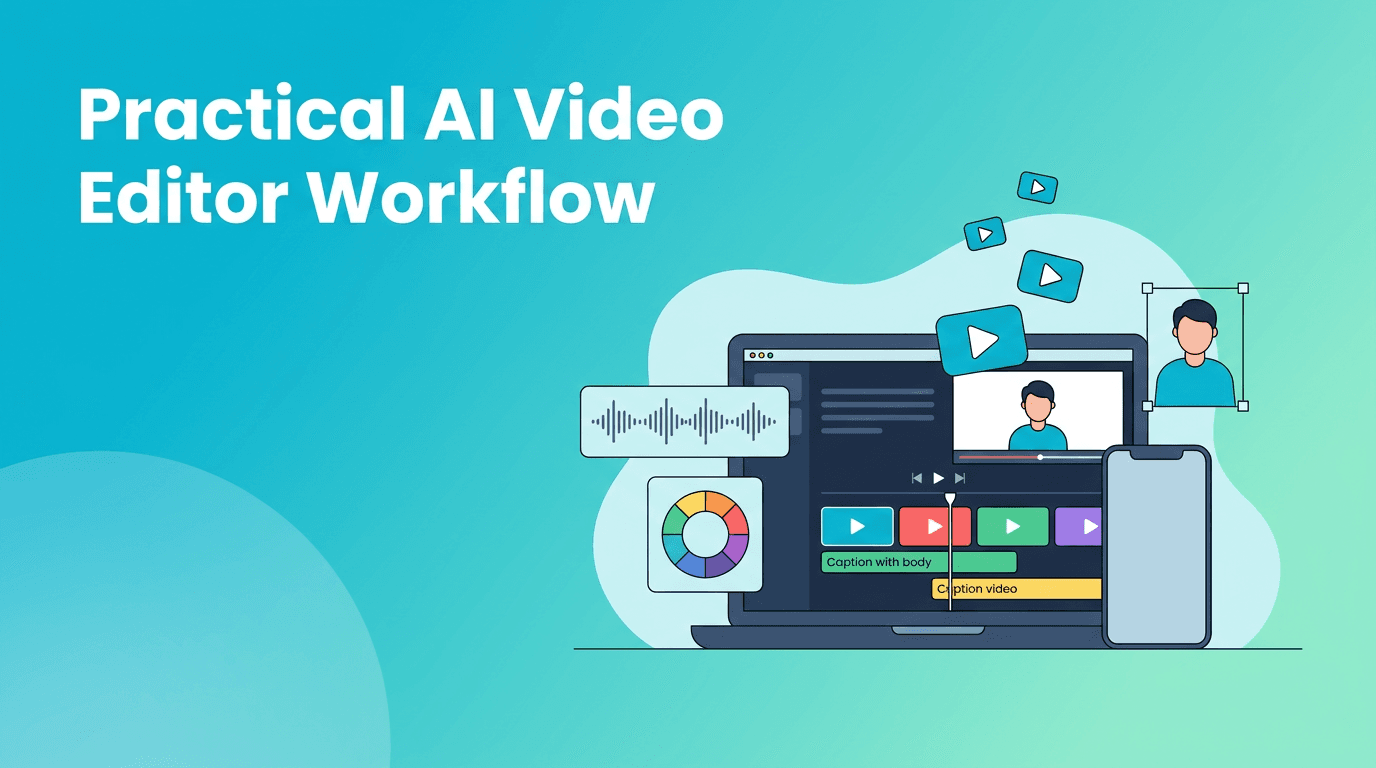
How to Edit Video With AI: A Practical Workflow for Faster Results
Learn how to edit video with AI using practical tutorials for captions, background removal, upscaling, audio cleanup, and faster editing workflows.
By Movi AI Team
Movi AI Editorial Team
If you want to learn how to edit video with AI, the biggest win is not replacing creativity, it is removing the slow, repetitive tasks that eat your time. Today, creators can use AI to handle captions, background removal, upscaling, object cleanup, audio enhancement, and repetitive timeline work while keeping creative control over the final edit.
This guide is built for video editors, YouTubers, and content creators who want practical steps they can use right away. Instead of vague theory, you will get a clear workflow, before-and-after examples, and a realistic comparison between AI video editing and manual editing.
Why creators are learning how to edit video with AI
- Manual editing is powerful, but it is often slow for repetitive tasks like syncing captions, masking backgrounds, cleaning noise, or resizing multiple clips.
- AI video editing speeds up the technical work so you can spend more time on story, pacing, and visual style.
- A strong AI video editor can help you go from rough footage to polished content faster, especially for short-form videos, YouTube explainers, product demos, and social content.
- The best results usually come from a hybrid workflow: let AI do the first pass, then refine by hand where taste matters most.
"AI does not replace the editor. It gives the editor more time to make better creative decisions."
Step 1: Start with a rough cut and let AI organize the edit
Before using effects or cleanup tools, import your footage and build a basic sequence. Trim obvious mistakes, place your best takes on the timeline, and identify the moments that matter most. This first pass should be fast. Do not obsess over perfection yet.
What AI should handle first
- Silence detection to remove dead space in talking-head videos
- Scene detection to split long takes into manageable clips
- Speech analysis to identify strong sound bites for shorts or highlights
- Auto reframing for vertical, square, or horizontal outputs
Before: one long clip with pauses, filler words, and uneven framing. After: a tighter timeline with cleaner pacing, ready for captions, enhancement, and finishing work.
Step 2: Use auto caption video tools to save hours
One of the easiest ways to understand how to edit video with AI is to begin with captions. Manual captioning is accurate but slow. AI can transcribe speech, place timing on the timeline, and give you a draft in minutes.
Practical caption workflow
- Upload your edited dialogue or voiceover track.
- Run an auto caption video tool to generate subtitles automatically.
- Review names, brand terms, and technical words, because those are where AI usually makes mistakes.
- Break long lines into shorter phrases for mobile viewing.
- Style captions with readable fonts, strong contrast, and safe margins.
For YouTube, Reels, and TikTok, this can dramatically improve retention because many viewers watch with sound off. A good AI video editor gives you the speed of automation with enough control to fix errors quickly.
Step 3: Remove messy backgrounds without frame-by-frame masking
Background cleanup used to be one of the most tedious jobs in editing. With an AI background remover video workflow, you can isolate a speaker or product much faster than drawing masks by hand across dozens or hundreds of frames.
When background removal works best
- A clear subject with strong separation from the background
- Good lighting and limited motion blur
- Talking-head videos, product shots, tutorials, and explainers
- Quick social edits where speed matters more than perfect edge detail
Before: distracting room details pull attention away from the message. After: the subject stands out cleanly, making the video feel more polished and branded. If needed, add a simple background, gradient, or blurred environment behind the cutout.
Step 4: Improve old footage with AI video upscale and enhancement
Creators often mix footage from phones, screen recordings, webcams, and archive clips. That is where AI video upscale and AI video enhancement tools can help. They sharpen detail, reduce visible compression, and make lower-quality footage fit better beside newer clips.
A simple upscale checklist
- Use upscaling on clips that are valuable but visibly soft or low resolution.
- Do not expect miracles from severely damaged footage. AI improves quality, but it cannot fully recreate missing information.
- Preview faces, text, and edges after enhancement. Oversharpening can look unnatural.
- Match enhanced clips to your sequence with light color and contrast adjustments.
A smart workflow is to enhance only the clips that need it, not the entire project. This saves processing time and helps maintain a more natural final look.
Step 5: Remove unwanted objects and distractions
Object removal is another task where AI can outperform manual methods for speed. Boom mics, wall marks, random passersby, or cluttered elements can often be reduced with AI-powered cleanup tools.
How to get cleaner object removal
- Choose short segments where the object stays relatively small in frame.
- Use AI removal first, then inspect for smearing or repeated textures.
- Cut away to B-roll if the repaired area looks unstable.
- Combine object removal with tighter crops when possible.
Before: a distracting item steals attention from the main subject. After: the viewer focuses on the speaker, product, or action instead of the mistake in the background.
Step 6: Enhance audio before viewers notice problems
Many creators focus on visuals first, but poor sound can ruin a strong edit. AI audio tools can reduce background noise, level volume, improve speech clarity, and prepare voice tracks faster than manual cleanup alone.
Fast audio enhancement workflow
- Run noise reduction to remove hum, fan sounds, or room noise.
- Apply speech enhancement to make dialogue clearer.
- Normalize loudness so different clips feel balanced.
- Check music levels after AI cleanup, because cleaner dialogue may change your mix decisions.
This is one of the biggest quality upgrades for tutorials, interviews, podcasts, and voiceover-driven content. Even a basic cleanup can make your video feel immediately more professional.
Step 7: Automate repetitive editing tasks across multiple videos
If you publish often, the real value of AI video editing comes from repeatable systems. You can build templates and automated steps for intros, lower thirds, subtitle styling, reframing, thumbnail moments, and social cutdowns.
- Create a reusable intro and outro package.
- Use consistent caption presets for every platform.
- Automate resizing for vertical, square, and widescreen versions.
- Generate short clips from long-form content using speech or scene analysis.
- Apply the same cleanup settings across a batch of similar videos.
This is where an app like *Movi AI* can fit into a faster creator workflow. You can turn text, images, or existing footage into new videos, then use AI-assisted editing features to build polished content faster for multiple channels.
Want a faster AI video workflow?
Use *Movi AI* to create and refine videos from prompts, images, or existing clips, then move from idea to publish-ready content much faster.
Download Movi AIAI editing workflow vs manual editing
Where AI wins
- Speed: captions, rough cleanup, reframing, and first-pass enhancement happen much faster.
- Scalability: easier to process many videos with similar needs.
- Accessibility: creators with smaller teams can produce more content consistently.
- Draft quality: AI gives you a strong starting point instead of a blank timeline.
Where manual editing still matters
- Creative timing: comedy beats, dramatic pauses, and emotional pacing still need human judgment.
- Brand style: color taste, motion choices, and storytelling structure are not one-click decisions.
- Quality control: AI outputs still need review for transcription mistakes, edge artifacts, and unnatural enhancement.
- Complex scenes: heavy motion, overlapping subjects, and difficult lighting may require manual fixes.
The most effective answer to how to edit video with AI is not choosing one method over the other. It is using AI for the repeatable labor, then applying your editing instincts where quality and style matter most.
What the best AI video editor app should include
- Accurate captions with easy text correction
- Background removal that handles people and products well
- Video enhancement and upscaling tools for mixed-quality footage
- Audio cleanup for dialogue-first content
- Fast exports and simple workflows for mobile creators
- Flexible creation options like text-to-video, image-to-video, and video-to-video
If you are comparing tools, the best AI video editor app is usually the one that removes friction from your specific workflow. For some creators, that means fast social edits. For others, it means repurposing long videos into many smaller assets.
Final takeaway
Learning how to edit video with AI is really about building a smarter sequence: rough cut first, captions second, cleanup third, enhancement fourth, and final polish last. When you apply AI to the tasks that are slow and repetitive, you save time without giving up creative control. That means faster publishing, better consistency, and more energy for ideas that actually move your channel forward.
Frequently Asked Questions
How do I edit video with AI as a beginner?+
Start with simple tasks like auto captions, silence removal, background cleanup, and audio enhancement. Let AI create the first draft, then review and refine the result manually.
What is the best AI video editor app for creators?+
The best app depends on your workflow, but look for captions, enhancement, background removal, and flexible creation tools. Movi AI is a strong option for creating and refining AI-powered videos quickly.
Can AI video editing replace manual editing?+
Not completely. AI is best for speeding up repetitive tasks, while manual editing is still important for storytelling, pacing, and quality control.
Does AI video upscale really improve low-quality footage?+
It can improve softness, compression, and perceived detail, especially on mildly degraded clips. Results are best when the original footage still has usable visual information.
Are auto caption video tools accurate enough for YouTube and TikTok?+
Usually yes for a strong first draft, especially with clear speech. You should still review names, jargon, and punctuation before publishing.
Create stunning AI videos in seconds!
Turn your ideas into professional videos with the #1 AI video maker.
Download Movi AI